Statistics & Billing is the one page that looks at your account as a whole rather than at a single file. The top half counts your applications for any period you choose and charts them month by month. The bottom half is your account with Credlab: the invoices Credlab has sent you, what is outstanding, and the reports that have been completed since the last invoice. This article covers reading the statistics, changing the period, finding an invoice, and asking for a statement.
Before you start
- You need to be an account admin. Statistics & Billing only appears in the menu for admins.
- Invoice details are read from Credlab's accounting system when you open the page, so they can take a moment to load, and they cover invoices dated on or after August 31, 2025.
- Invoices are sent by email to the address chosen on Edit Account, or to the account owner when none is chosen. See "Manage your accounts".
Open the page
- Click your profile picture in the top right corner, then click Statistics & Billing.
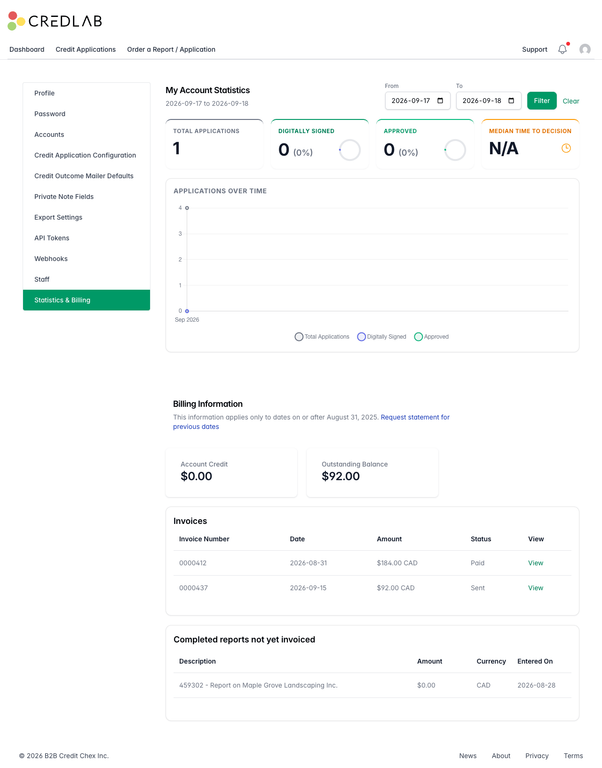
The Statistics and Billing page with four statistic cards, an Applications Over Time chart, the Billing Information section, two invoices, and a completed report not yet invoiced.
Read the statistics
The four cards at the top count the applications that arrived in the period shown under the heading.
- Total Applications is every application received in the period, not counting archived ones.
- Digitally Signed is how many of those were signed online, with the share of the total beside it.
- Approved is how many have an approved decision recorded on the file, with the share beside it.
- Median Time to Decision is the typical time from an application arriving to a decision being recorded on it, in days and hours. It shows N/A until at least one application in the period has a decision.
Applications Over Time plots the same three counts month by month across the period.
Change the period
- Pick a date in From and in To. The page refreshes as soon as you choose a date, and the range under the heading changes to match.
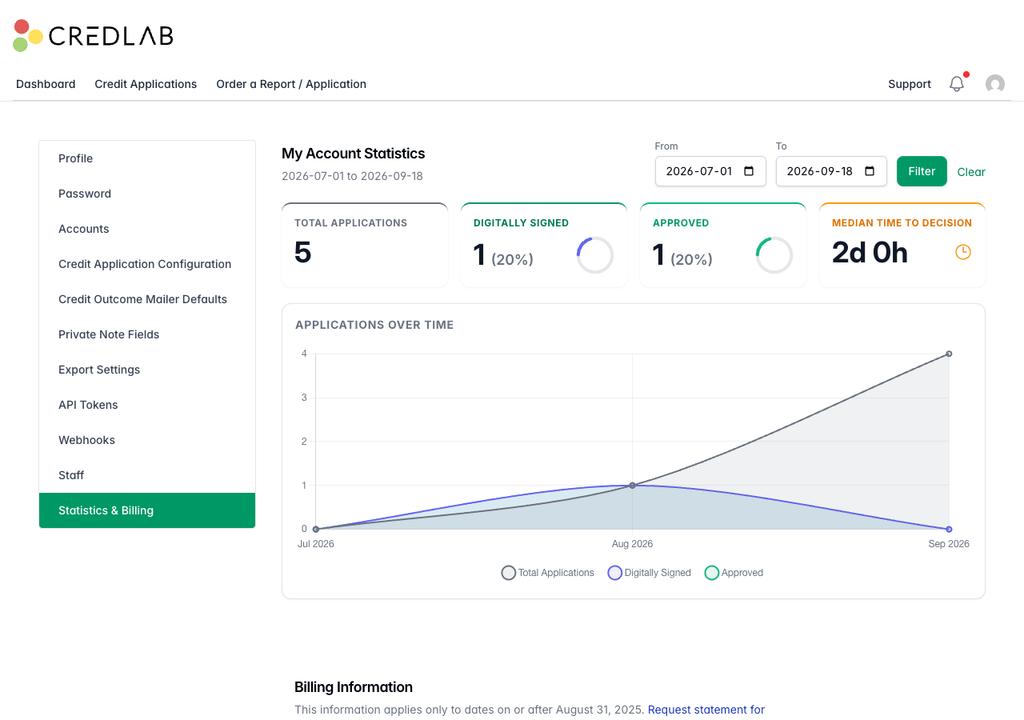
The statistics for July to September, showing five applications, one signed, one approved, and a median time to decision of two days. - Click Clear to go back to the whole life of your account.
The chart always shows whole months, so a period that starts mid-month begins at the first of that month on the chart.
Find an invoice
Scroll down to Billing Information. Two cards show your Account Credit, any amount Credlab is holding in your favour, and your Outstanding Balance, the total of invoices not yet paid.
- Find the invoice in the Invoices table under the cards. Each row shows the invoice number, its date, the amount and currency, and its status, such as Sent, Paid or Overdue.
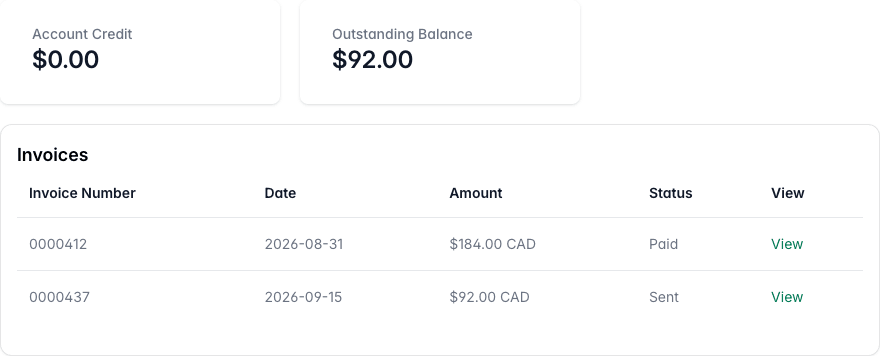
The Account Credit and Outstanding Balance cards above an Invoices table listing two invoices with their dates, amounts, statuses, and View links. - Click View to open the invoice in a new tab.
If the accounting system cannot be reached, the section says that invoice information is not currently available. Try again a little later.
See what has not been invoiced yet
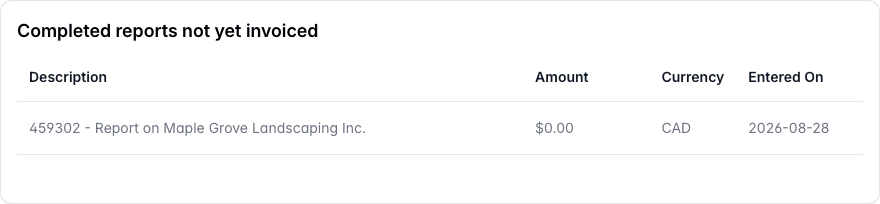
Completed reports not yet invoiced lists each report Credlab has completed for you since your last invoice, with its amount and the date it was entered. It only appears when there is something waiting. These are the lines that will make up your next invoice, so it is the place to look if you want to know what is coming before it arrives.
Ask for a statement
Invoices before August 31, 2025 are not on this page. Click Request statement for previous dates under the Billing Information heading. It opens a new email to Credlab with the subject line filled in, so all you have to do is send it.
Tips & notes
- Archived applications are left out of every count on this page, so archiving old files does not just tidy your list, it also keeps the statistics honest.
- A decision has to be recorded to count. Approved means the file's approval status is set to Approved, and the median time uses the moment that was first set. A decision made by email and never recorded on the file counts as no decision. See "Record the decision and assign your team".
- Month by month is the only view. The chart cannot show weeks or days. For finer detail, export your applications and chart them yourself. See "Create export profiles".
- Change where invoices go on Edit Account. The Send invoices to the email address box lists your users and your staff, and accepts any other address you type. See "Manage your accounts".
- Questions about a charge go to service@credlab.com, quoting the invoice number from the table.
Related articles
- Manage your accounts
- Record the decision and assign your team
- Create export profiles
- Get help: support tickets and What's new