One section of Application Settings decides how applicants reach your form and what happens when they send it: the address of your form, whether they are asked to sign online, whether they can switch the form to French, whether they can send a company information sheet instead, and whether they see a note before the application goes. This article walks through that section, switch by switch, and says what each one changes for the applicant.
Before you start
- You need to be an account admin. Credit Application Configuration only appears in the menu for admins.
- Changing the application address changes the link you have already sent out. Read "Choose your application address" before you touch it.
- Everything here saves together with the rest of Application Settings when you click Save Configuration.
Open the section
- Click your profile picture in the top right corner, then click Credit Application Configuration.
- Click the Application & submission options row to open it.
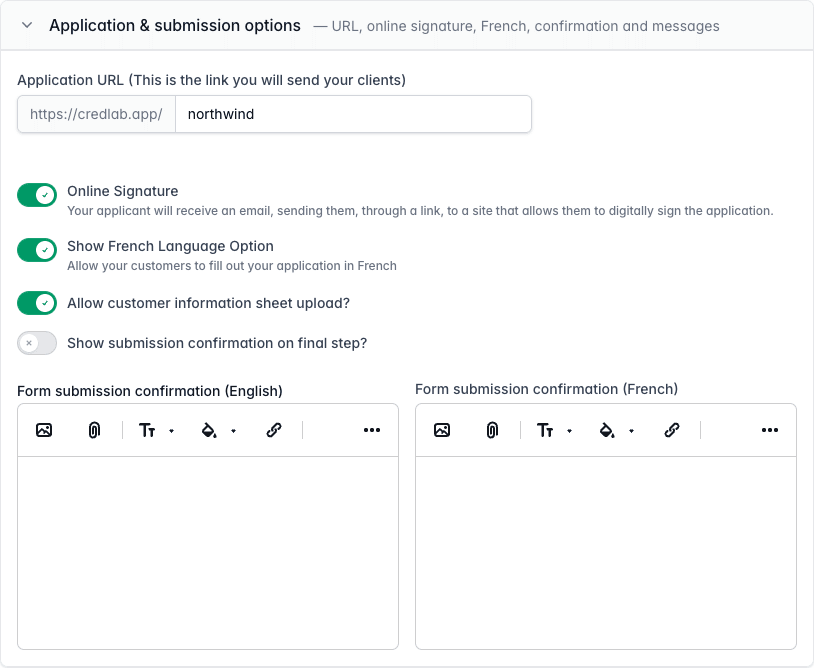
The Application and submission options section open, showing the Application URL box, four switches, and two confirmation message editors.
Choose your application address
Application URL is the last part of the link your applicants use. Credlab shows the first part, https://credlab.app/, in front of the box, and whatever you type after it becomes your link. It is stored in lower case, it has to be unique across Credlab, and a handful of addresses Credlab uses itself are reserved.
- Type the address you want into Application URL.
- Scroll to the bottom of the page and click Save Configuration.
The old address stops working as soon as you save, so update your website, your email signatures, and anywhere else the old link lives. The dashboard's Share your link card always shows the current one. See "Share your application link and receive applications".
Switch the online signature on or off
Online Signature decides what happens after an applicant submits. With it on, the confirmation page tells them the application is not finished until it is signed, Credlab emails a signing link to the signer they named, and the file waits with a signature status until they sign. With it off, the application is complete on submission and nothing is sent for signature.
The switch is on for new accounts. See "Send the application for e-signature" for the signing side.
Offer the form in French
Show French Language Option adds an EN | FR switch to the top right corner of your form, so an applicant can fill it in in French.
- Turn the switch on. The French boxes appear beside their English counterparts across Application Settings and the builder: a French title and subtitle, a French address, French field labels, French terms.
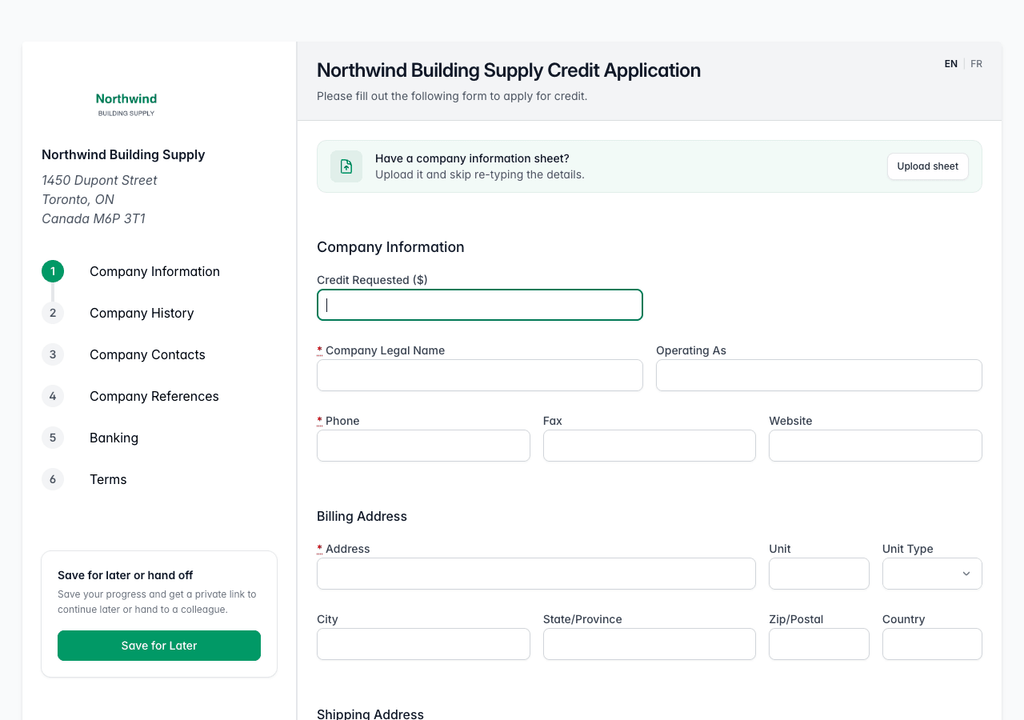
The top of the public application form with the title and subtitle on the left and the EN and FR language switch at the top right. - Fill the French boxes in. An empty one shows as empty on the French form, so leave the switch off until the wording is ready.
Applications submitted in French are marked as such on the file, and the outcome email to that applicant uses your French template.
Let applicants send a company information sheet
Allow customer information sheet upload? puts a green Have a company information sheet? banner at the top of the first step, with an Upload sheet button. An applicant who already has a one page credit sheet can attach it and fill in a short form instead of the whole application. The sheet arrives as a new file with the document attached. See "Share your application link and receive applications" for what that page looks like.
Leave the switch off if you want every applicant to complete the full form.
Ask applicants to confirm before they submit
Show submission confirmation on final step? adds one more step at the very end. When it is on, clicking Submit on the Terms step opens a box headed Please Note with your own wording in it, and the application only goes when the applicant confirms.
- Turn the switch on.
- Type the wording into Form submission confirmation (English), and into the French box if your form offers French. It is an ordinary editor, so a short paragraph or a bulleted list both work.
- Click Save Configuration.
Use it for the one thing applicants keep getting wrong: a reminder to attach financial statements, or that the person named as the signer will receive an email and must sign before the account is opened. Leave the switch off and the wording is never shown.
Tips & notes
- Test your own link after saving. Open it in a private browser window, so you see the form as an applicant, and click through the first step. Nothing is created on your account until an applicant actually submits, and a saved but unsubmitted draft disappears on its own after 60 days.
- French needs more than the switch. The terms, the personal guarantee, the section names and the custom fields all have French versions in the builder, and the credit outcome email has a French template. See "Build your application form with the form builder" and "Set up credit outcome email templates".
- The address is shared across Credlab. If the one you want is taken, Credlab says so when you save. Try adding your city or your industry.
- Bank verification has its own section. The fourth row on this page, Bank Verification (Plaid), is covered in "Configure bank verification on your form".
Related articles
- Share your application link and receive applications
- Send the application for e-signature
- Upload your company logo
- Change your application's title, subtitle and address
- Configure bank verification on your form