Your logo is the first thing an applicant sees when they open your application form, and it follows the application onto the printed copy and the pages Credlab sends them to later. Uploading it takes a minute on the Application Settings page. This article covers where the setting is, how to upload or replace the file, and every place the logo appears afterwards.
Before you start
- You need to be an account admin. Credit Application Configuration only appears in the menu for admins.
- Have the logo ready as an image file. A PNG with a transparent or white background looks best, and a wide, horizontal version suits the spaces Credlab puts it in better than a tall or square one.
- Credlab scales the picture down to fit, so there is no need to resize it first, but a very small file will look soft when it is stretched to fill the form's sidebar.
Open Application Settings
- Click your profile picture in the top right corner, then click Credit Application Configuration. The Application Settings page opens with four collapsed sections under the green builder panel.
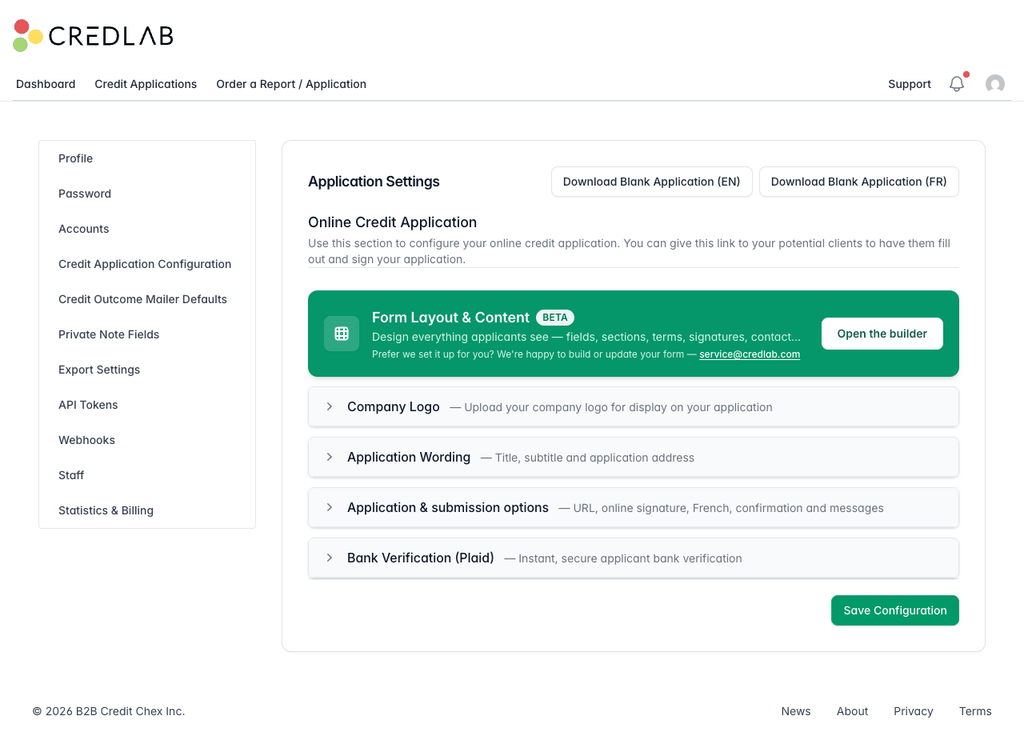
The Application Settings page with the Form Layout and Content panel above four collapsed sections, the first of them Company Logo.
Upload or replace the logo
- Click the Company Logo row to open it. If you already have a logo, it shows under Current logo.
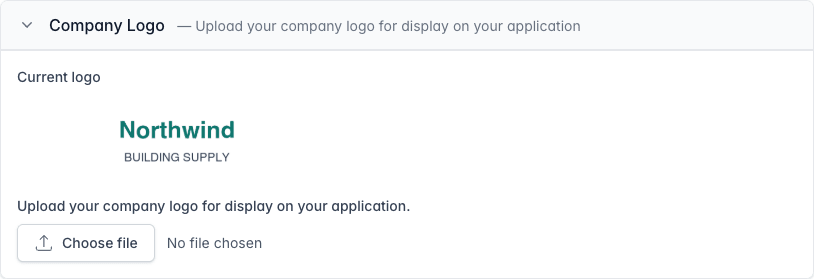
The Company Logo section open, showing the current Northwind Building Supply logo above a Choose file button that says no file chosen. - Click Choose file and pick the image on your computer. Its file name appears beside the button.
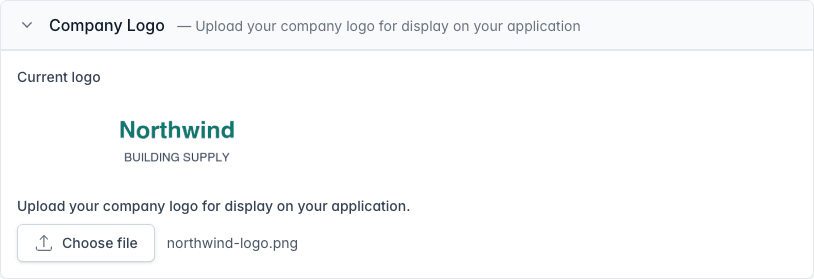
The Company Logo section after choosing a file, with northwind-logo.png shown beside the Choose file button. - Scroll to the bottom of the page and click Save Configuration. Credlab confirms that the configuration was updated, and the new picture shows under Current logo from then on.
A new file replaces the old one. There is nothing else to delete.
Where your logo appears
- On your application form, in the left hand column above your company name and address, or across the top on a phone. Open your own link to check it once you have saved.
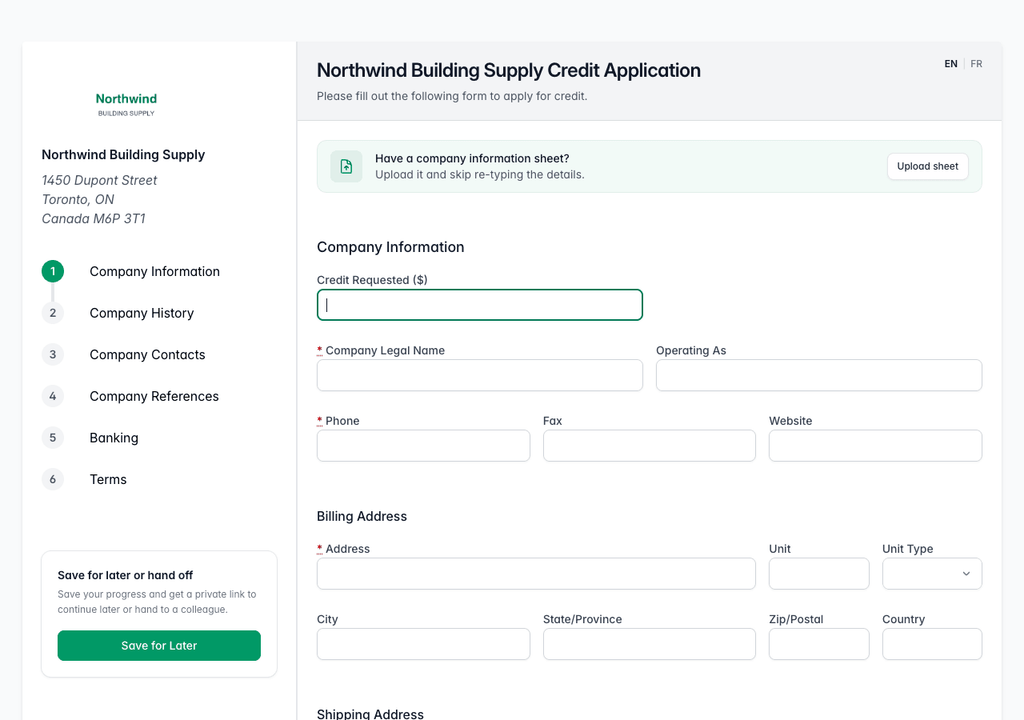
The public application form with the Northwind logo above the company name and address in the left column, and the first step's fields on the right.
It also appears at the top of the applicant's copy of a submitted application and its PDF, on the printable blank application you can download from the top of Application Settings, and on the page an applicant lands on when you send them a bank connection request.
Tips & notes
- Check the form after saving. Click the Download Blank Application (EN) button at the top of Application Settings, or open your application link, and look at the logo where an applicant will see it. A logo with a dark background can disappear against the form's white sidebar.
- Leave the other sections alone while you are here. Saving the page saves every section on it, so a change you started in another section and forgot about goes out with the logo.
- The logo is not the same as your account picture. The initials or picture beside your account name inside Credlab are separate, and only your team sees them. The logo is for applicants.
- To remove a logo rather than replace it, email service@credlab.com. There is no remove button on the page.
Related articles
- Change your application's title, subtitle and address
- Set your application link and submission options
- Build your application form with the form builder
- Share your application link and receive applications