Every credit file has a Private notes and options card for the things only your team records: the decision, the account manager, the account number, notes. If your team also records something Credlab has no box for, such as which committee looked at the file, the sales region, or an internal customer code, an account admin can add a box for it. Custom fields appear on every file, save as you go, can be quoted in your credit outcome emails, and can be exported. This article covers adding a field, choosing between a text box and a combo box, ordering and retiring fields, and where the values go.
Before you start
- You need to be an account admin. Private Note Fields only appears in the menu for admins.
- Decide whether each field is free text or a fixed list. A combo box keeps the answers consistent, which matters if you plan to filter an export on it.
- Filling a custom field in on a file needs the Can modify private notes section permission, or an account admin, the same as the rest of the card.
Open the fields page
- Click your profile picture in the top right corner, then click Private Note Fields. Until you add one, the page says there are no custom fields yet.
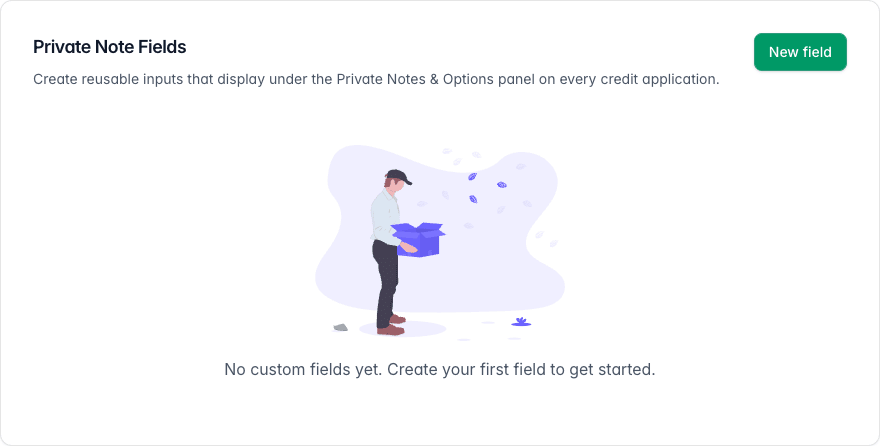
The Private Note Fields page with a New field button and an empty state saying no custom fields yet.
Add a field
- Click New field.
- Type the name your team will see on the file into Label.
- Choose Text box or Combo box in Field type. A text box takes anything typed into it. A combo box offers a fixed list.
- For a combo box, type the choices into Options, one per line. A combo box with no options is refused.
- For a text box, you can type a hint into Placeholder. It shows in grey inside the empty box on the file and disappears once somebody types.
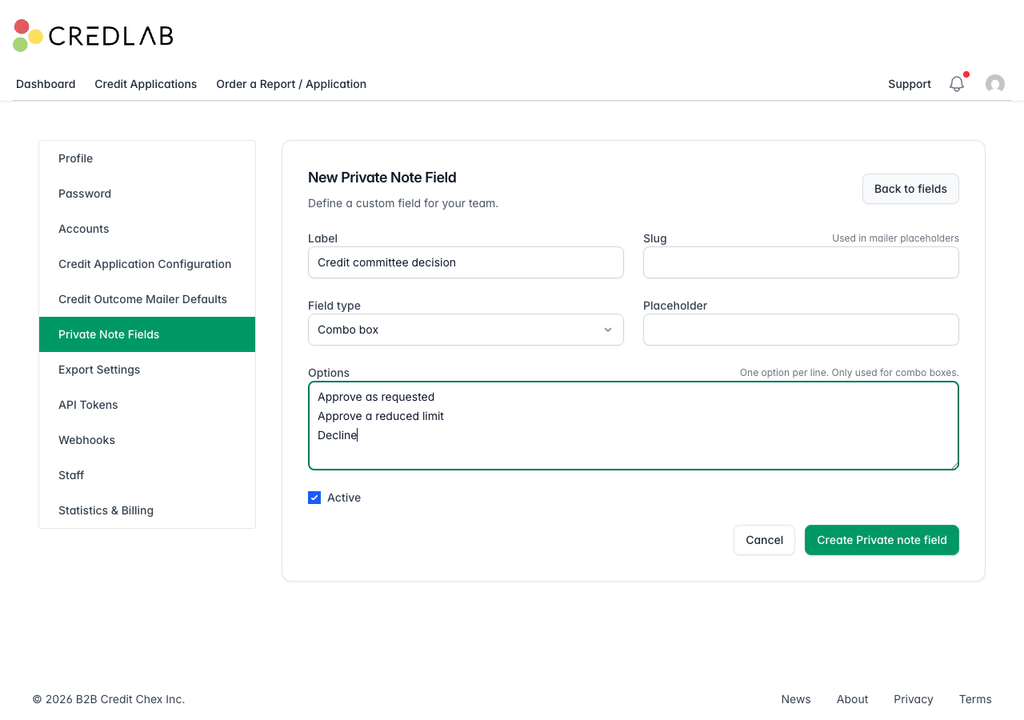
The New Private Note Field form with the label Credit committee decision, Field type set to Combo box, three options one per line, and Active ticked. - Leave Active ticked and click Create Private note field.
Leave Slug empty and Credlab makes one from the label, lower case with underscores. It is the field's name in email placeholders and exports, so there is no reason to type one unless you want a shorter one. Changing it later changes the placeholder, and the values already saved on files under the old slug no longer show.
Order, edit, and retire fields
- Back on the list, drag a field by the handle at its left to change the order. It is the order the boxes appear in on every file.
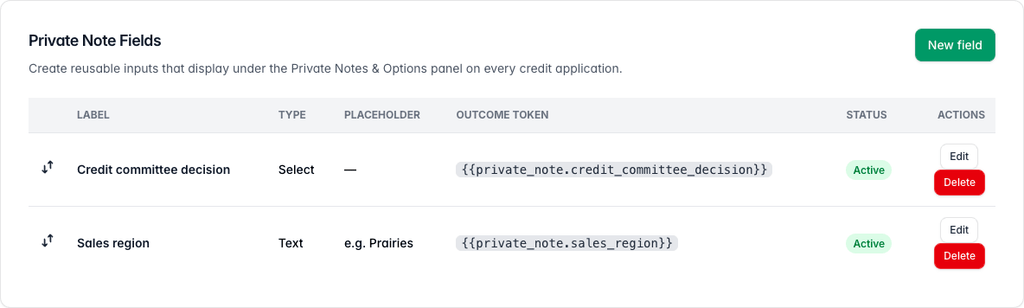
The Private Note Fields list showing two fields, a combo box and a text box, each with its outcome token, an Active badge, and Edit and Delete buttons. - Click Edit to change a field's label, type, placeholder or options.
- Untick Active and save to hide a field from every file without losing anything. It shows as Inactive in the list, and the values already entered stay on the files until you make it active again.
- Click Delete and confirm to remove a field for good. The box disappears from every file, and so does everything your team typed into it.
Fill fields in on a file
- Open a credit file and find the Private notes and options card. Your custom fields sit under the Account manager and Account number row, in the order you set.
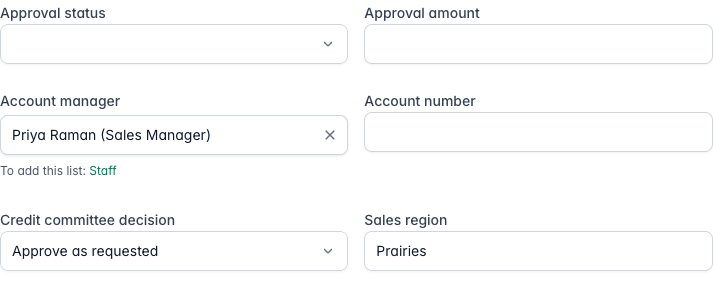
Part of the Private notes and options card showing the decision and account manager rows above two custom fields, Credit committee decision and Sales region. - Choose an option, or type into a text box and click outside it. Each field saves on its own as soon as you leave it, like the rest of the card.
Quote a field in an outcome email
Each custom field has an Outcome Token, shown on the fields page, in the form {{private_note.slug}}. Put it in a mailer template and Credlab swaps in whatever was entered for that field on the file being emailed.
- Open Mailer Templates from the menu behind your profile picture and click Placeholders. A second table, Custom Private Note Fields, lists your fields under the standard placeholders, each with a copy button.
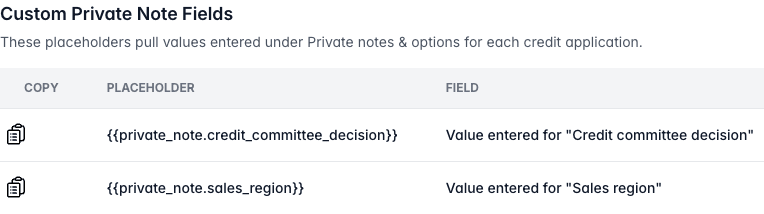
The Custom Private Note Fields table on the Mailer Templates page listing the two placeholders and the field each one takes its value from. - Click the copy icon beside a placeholder, paste it into the template where the value belongs, and save the template. See "Set up credit outcome email templates".
Tips & notes
- Custom fields can be exported. They appear in the export field list under Private Notes, so an export profile can carry them as columns. See "Create export profiles".
- A combo box is the safer choice for anything you will report on. Ten people typing "Prairies", "prairie" and "AB/SK" into a text box makes a poor filter.
- Deactivate rather than delete when in doubt. Deleting takes the values with it. Deactivating only hides them.
- Fields are for your team, not the applicant. Nothing here appears on your application form. To ask the applicant for something, add a field in the form builder instead. See "Build your application form with the form builder".
- The same fields for everybody. Custom fields belong to the account, so every file and every user on the account gets the same set.
Related articles
- Record the decision and assign your team
- Set up credit outcome email templates
- Create export profiles
- Build your application form with the form builder