When you put a staff member on a credit file you also say what they are to it: the inside sales rep, the outside sales rep, the manager. Those labels are your staff types, and they do two jobs beyond describing the person. Each one decides whether that person is copied on the credit outcome email by default, and each one gives your email templates a set of placeholders. This article covers the list of types, adding one, renaming one, and putting one away when you no longer use it.
Before you start
- Anybody on your account can change the staff types. There is no permission to ask for, so let your team know before you rename something everybody uses.
- Every account starts with four types: Sales Manager, Inside Sales, Outside Sales and Other. Inside Sales and Outside Sales are marked to be included in email recipients by default; the other two are not.
- Types are labels for staff on files, not permissions. Adding a type does not let anybody do anything new.
Find the list
- Click your profile picture in the top right corner, then click Staff. Scroll down to the Manage Staff Types card under the staff list.
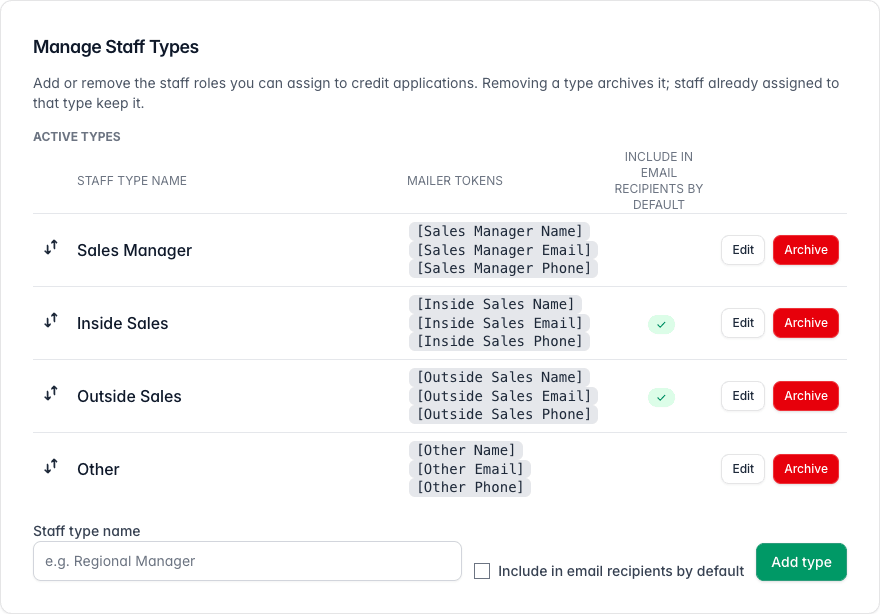
The Manage Staff Types card listing Sales Manager, Inside Sales, Outside Sales and Other, each with three mailer tokens and Edit and Archive buttons, above the add form.
Each active type has three columns after its name.
- Mailer tokens are the three placeholders this type gives your email templates: a name, an email and a phone. They fill from the first staff member of that type on the file when the outcome email is written. See "Set up credit outcome email templates".
- Include in email recipients by default carries a green tick when the first staff member of that type on a file is put into the outcome email's recipients before anybody has typed anything.
- Drag the handle at the left of a row to change the order. It is the order the Type box on a file offers them in.
Add a type
- Type the name into Staff type name under the list.
- Tick Include in email recipients by default if people of this type should be copied on outcome emails.
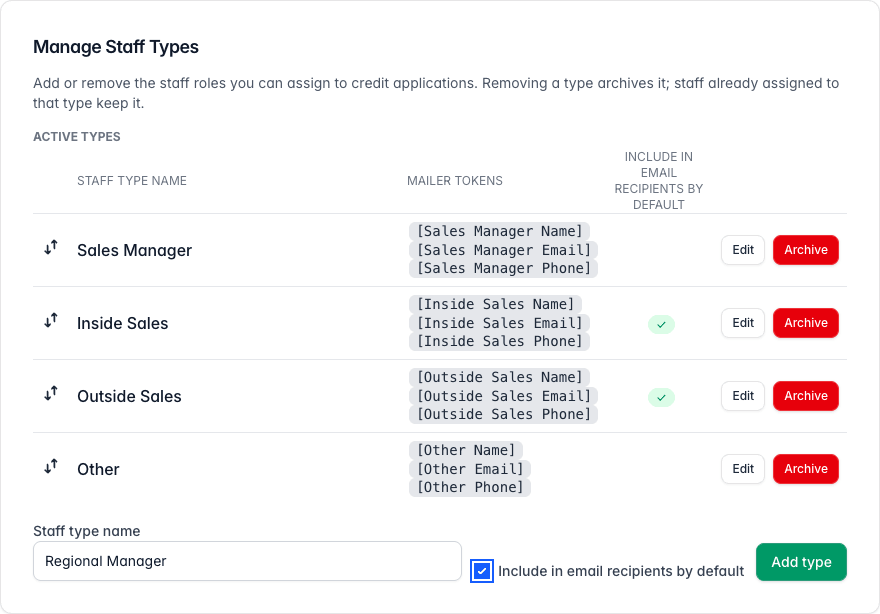
The Manage Staff Types card with Regional Manager typed into the Staff type name box and the include in email recipients box ticked. - Click Add type. The new type joins the bottom of the list with its three placeholders already made from the name.
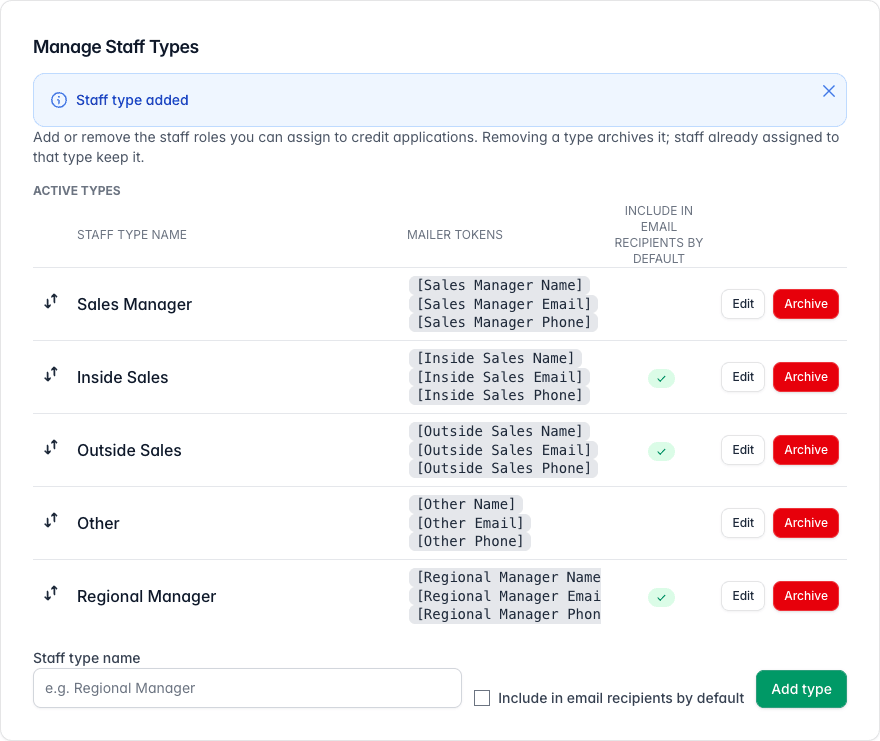
The card after adding, with Regional Manager as a fifth active type carrying a green tick and its own mailer tokens.
A name that is already in use is refused. If it is in use by an archived type, Credlab says so and asks you to restore that one instead of adding a copy.
Rename a type or change its default
- Click Edit beside the type. The row turns into a small form.
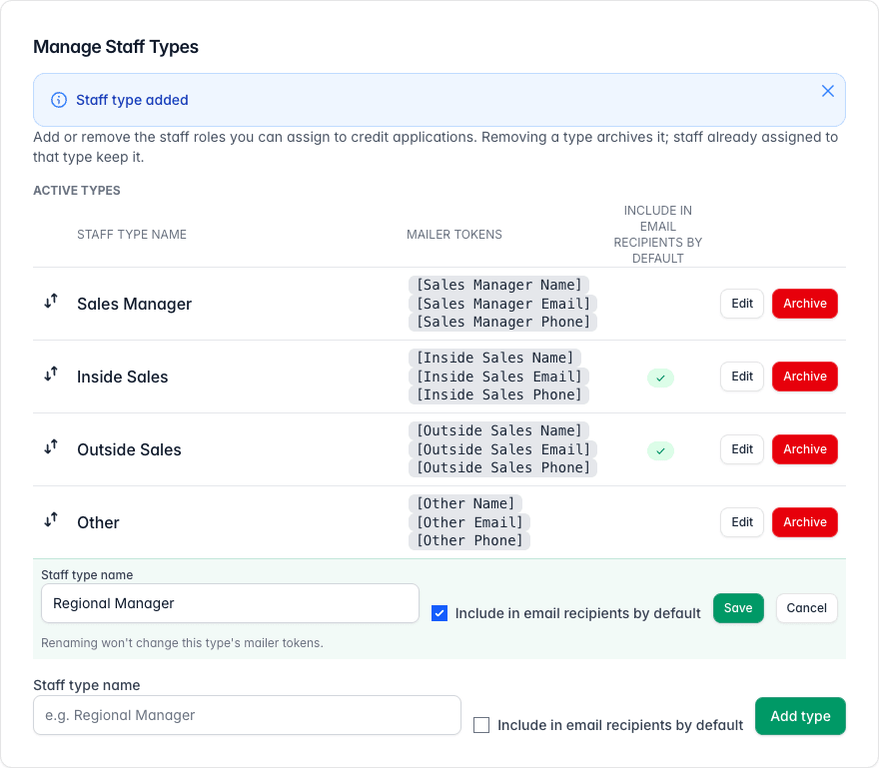
The Regional Manager row opened for editing, with the name box, the include in email recipients tick, Save and Cancel buttons, and a note that renaming keeps the tokens. - Change the name or the tick and click Save, or click Cancel to leave it as it was.
Renaming does not change the type's mailer tokens. A type you created as "Regional Manager" keeps [Regional Manager Name], [Regional Manager Email] and [Regional Manager Phone] whatever you rename it to, so the templates that use them keep working.
Put a type away
- Click Archive beside the type and confirm. The type moves to an Archived types list at the bottom of the card.
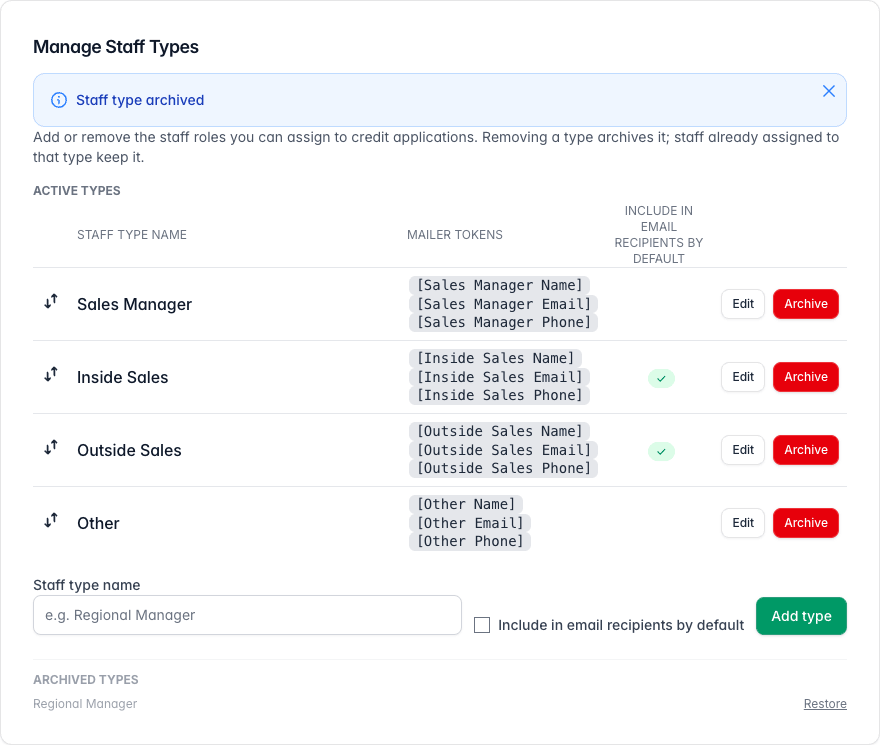
The card after archiving, showing four active types and an Archived types list at the bottom with Regional Manager and a Restore link.
Archiving never deletes anything. Files that already carry a staff member of that type keep it, and the type is simply no longer offered for new rows. Click Restore to bring it back.
Tips & notes
- Add the type before you need it on a file. A staff row needs a type, and only active types are offered.
- Think about the email tick. A tick means everybody who sends outcome emails will find that person in the recipients on every file they are on. Leave it off for roles that should only be copied by hand.
- Only the first person of each type is automatic. If two people share a type on one file, the second one is not added to the email recipients or the placeholders on their own. See "Record the decision and assign your team".
- Archive rather than rename when the meaning changes. Renaming keeps the old placeholders and the old assignments under the new name. If a type has really stopped meaning what it did, archive it and add a fresh one.
Related articles
- Add staff and assign them to credit files
- Record the decision and assign your team
- Set up credit outcome email templates