Staff are the people in your company who belong on a credit file without needing to sign in to Credlab: the sales rep who brought the customer in, the branch manager who looks after them, the person who should be copied on the approval. You keep them on one list, and every file can then name an account manager and any number of other staff from it. Their names, emails and phone numbers flow into the credit outcome email from there. This article covers adding somebody to the list, editing or removing them, and where they turn up on a file.
Before you start
- Anybody on your account can open the Staff page and add to it. There is no permission to ask for.
- Staff are not users. Somebody on the staff list cannot sign in to Credlab, see files, or receive Credlab notifications. If they need to work files themselves, an account admin invites them instead. See "Invite a user and set their permissions".
- Each staff member needs a name and an email address. The email is what Credlab writes into the outcome email's recipients, so use a real one.
Open the staff list
- Click your profile picture in the top right corner, then click Staff. The list opens with everybody already on it, and the Manage Staff Types card underneath.
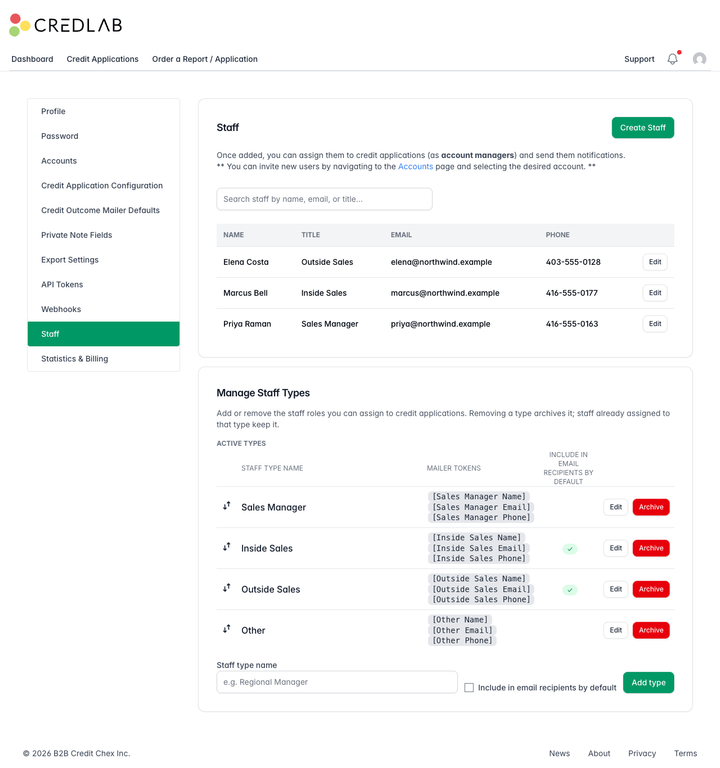
The Staff page listing three people with their titles, emails and phone numbers, a search box, a Create Staff button, and the Manage Staff Types card below.
Type into the search box to narrow the list by name, email or title. It filters as you type.
Add somebody
- Click Create Staff.
- Type their name into Name, their job title into Title, their work email address into Email, and their phone number into Phone. Name and email are required, and the email has to look like an email address.
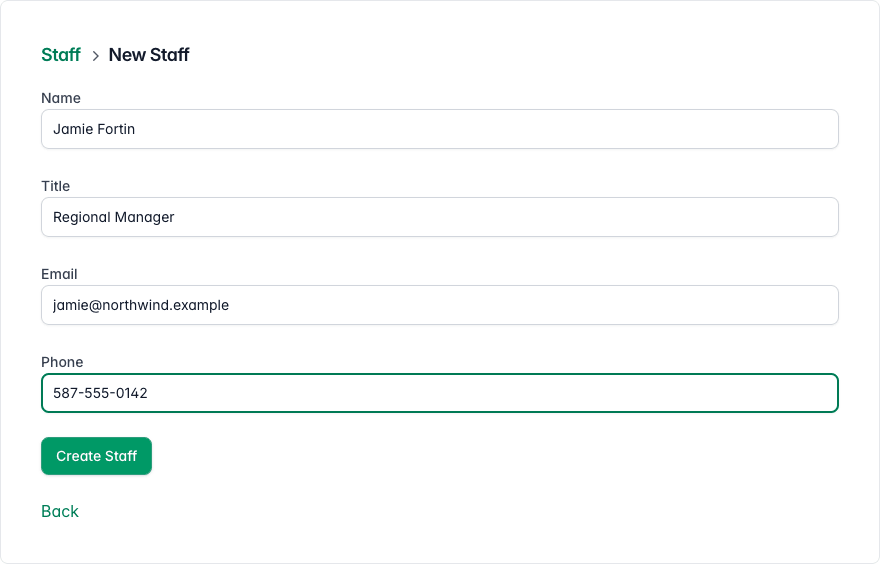
The New Staff form filled in for Jamie Fortin, Regional Manager, with an email address and phone number above a Create Staff button. - Click Create Staff. Credlab confirms the addition and shows the list again with the new name in it.
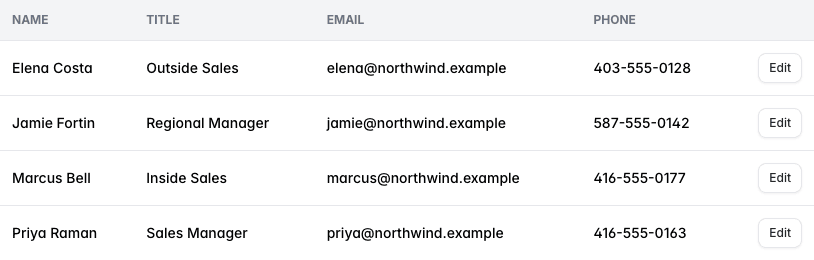
The staff list now showing four people in alphabetical order, Jamie Fortin among them, each with an Edit button.
The title is worth filling in. Credlab shows it in brackets after the name wherever you pick a staff member on a file, which is what tells two people with the same name apart.
Edit or remove somebody
- Click Edit beside their name.
- Change what you need and click Update Staff, or click Delete and confirm to take them off the list.
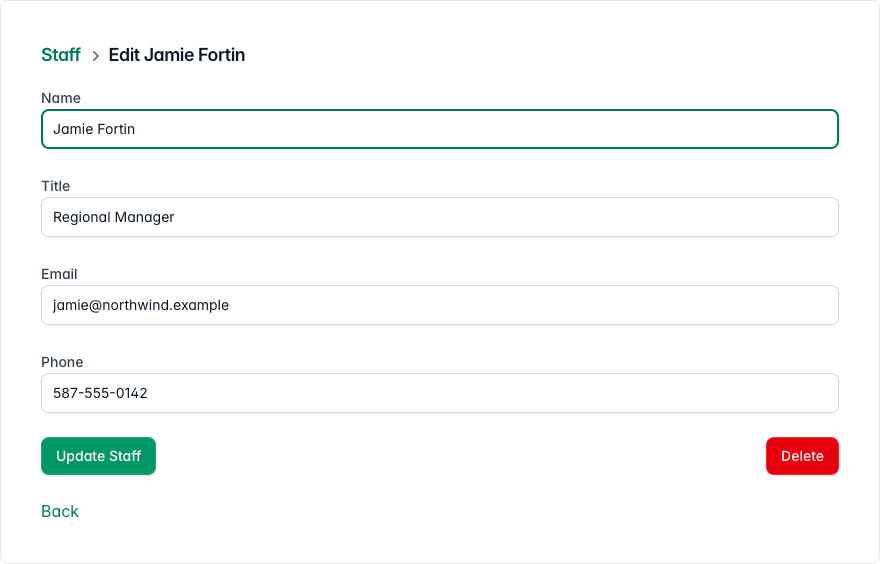
The Edit Jamie Fortin form with the four fields filled in, an Update Staff button on the left and a red Delete button on the right.
Deleting somebody also takes them off the Staff rows of every file they were on. A file that named them as account manager shows an empty Account manager box afterwards, so pick a replacement on the files that matter.
Put staff on a credit file
- Open the credit file and find the Private notes and options card. Account manager offers your staff list, and each Staff row pairs a person from the list with a Type.
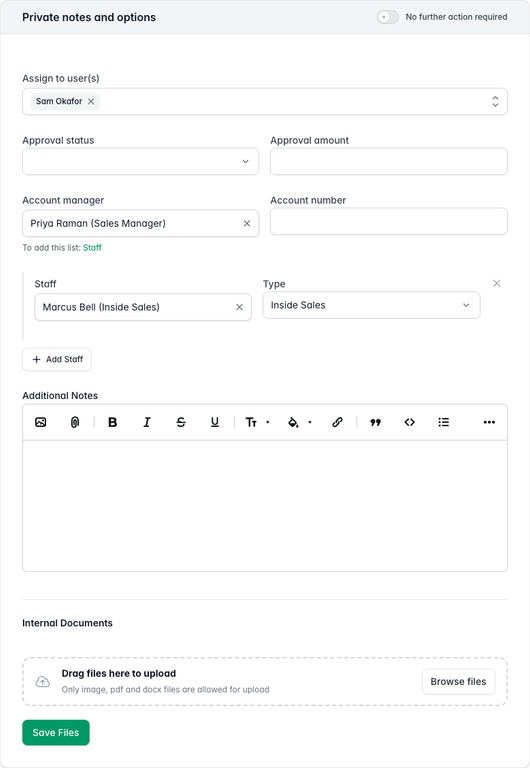
The Private notes and options card with Priya Raman as account manager and a staff row for Marcus Bell as Inside Sales, with an Add Staff button.
Choosing an account manager saves straight away. A staff row saves once both its boxes are filled. The Staff link under the account manager box brings you back to this list when the person you want is not on it yet. Changing this card needs the Can modify private notes section permission, or an account admin. See "Record the decision and assign your team" for the rest of the card.
Where staff turn up
- The credit outcome email. When somebody opens the outcome composer on a file, the account manager is already in the recipients, and so is the first staff member of every type marked Include in email recipients by default. Out of the box that is Inside Sales and Outside Sales.
-
The email wording. Templates can quote the account manager with
[Account Manager Name],[Account Manager Email]and[Account Manager Phone], and each staff type has its own three placeholders, such as[Inside Sales Name]. See "Set up credit outcome email templates". - The applications list. You can filter your files by account manager.
- Invoices. The Edit Account page lets you choose who receives Credlab's invoices, and the list it offers includes your staff as well as your users.
Tips & notes
- One list for the whole account. Everybody on your account sees the same staff list and the same staff types, so agree on titles before you fill it in.
- Use titles for branches or regions. The title shows in brackets after the name, so "Priya Raman (Sales Manager, Calgary)" is a fair way to tell two branches apart.
- A staff member who becomes a user stays a staff member. Inviting them as a user does not remove them from this list, and it does not need to. The two lists do different jobs.
- The types are yours to change. If your company does not talk about inside and outside sales, rename the types or add your own. See "Manage staff types".
Related articles
- Manage staff types
- Record the decision and assign your team
- Set up credit outcome email templates
- Invite a user and set their permissions