Every credit outcome email your team sends starts from wording you write once. Mailer Templates holds a template for each decision your team can record, plus any number of internal templates for telling your own people about a file. Each one is an ordinary subject line and an ordinary message, with placeholders such as [Applicant Name] and [Approval Amount] where the details of the file belong. Credlab fills those in when somebody opens the composer on a file, so the person sending the email only has to read it and press the button. This article covers opening the page, using the placeholders, editing a credit result template, and adding an internal template of your own.
Before you start
- You need to be an account admin. Your team sends these emails from the credit files themselves, but only an admin changes the wording they start from.
- Editing a template changes what the next email starts from. Emails already sent are untouched, and so is a composer somebody already has open on a file.
- The whole page is one form with a single Save Templates button at the bottom. Nothing you type is kept until you press it.
- Sending is a separate job, done on the file itself. See "Send the credit outcome email".
Open your templates
- Open Mailer Templates from the menu behind your profile picture in the top right corner. The page opens with the placeholder list at the top, the five credit result templates below it and your internal templates at the bottom.
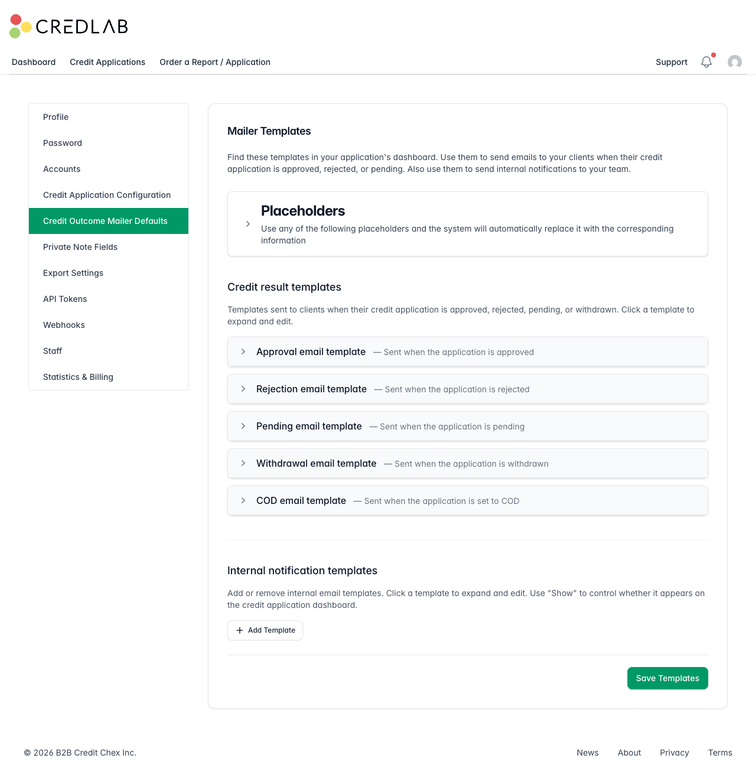
The Mailer Templates page listing the Placeholders panel, five collapsed credit result templates and an empty internal notification section.
There are two groups of templates on the page.
- Credit result templates go to the applicant. There are five, one for each of Approval, Rejection, Pending, Withdrawal and COD. Flagged has no template of its own, so a flagged file opens the composer on a blank message instead. The status on the file decides which template the composer opens with, so a file marked approved gets the approval wording without anybody choosing it.
- Internal notification templates go to your own people instead. These are yours to invent, and they appear on a credit file under Send from a template... rather than being tied to a status.
Every template is collapsed until you click it, so the page stays short however many you have.
See what the placeholders do
A placeholder is a piece of text in square brackets that Credlab swaps for a real value when the email is written. [Applicant Name] becomes the applicant's company name, [Approval Amount] becomes the limit recorded on the file, and so on.
- Click Placeholders at the top of the page. The panel opens on a table of every placeholder you can use and what each one becomes.
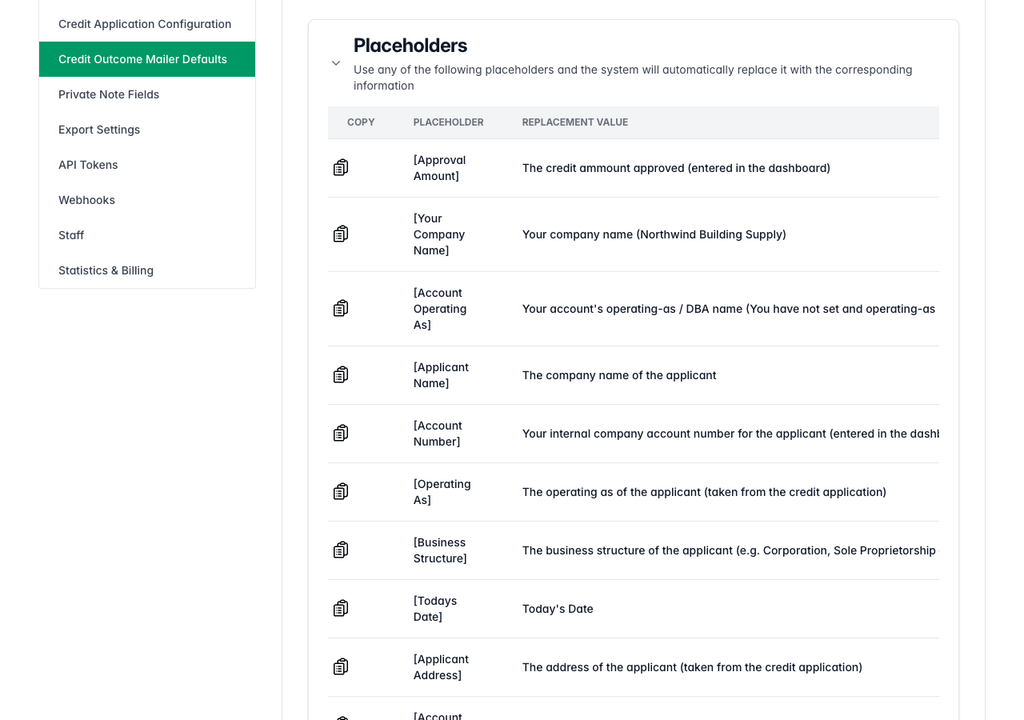
The Placeholders panel open, listing placeholders such as Approval Amount and Applicant Name beside a description of what each becomes.
The table is wider than the panel, so drag it sideways if a description runs off the right hand edge. The small icon in the Copy column copies that placeholder to your clipboard, ready to paste into a template.
These are the placeholders you can use:
-
About the applicant:
[Applicant Name],[Operating As],[Business Structure],[Applicant Address],[End Market]. -
About the decision:
[Approval Amount],[Account Number],[Todays Date]. -
About your company:
[Your Company Name],[Account Operating As]. -
About the account manager on the file:
[Account Manager],[Account Manager Email],[Account Manager Phone]. -
A link for the applicant:
[File Upload Link], which becomes an address they can use to send you more documents.
Your account's staff types add placeholders of their own. Each active staff type contributes three tokens, named after that type's label: a name, an email and a phone, for example [Inside Sales Name], [Inside Sales Email] and [Inside Sales Phone] for the Inside Sales staff type. Every account starts with Sales Manager, Inside Sales, Outside Sales and Other, so these are on every account already, and the table on the page grows a new row of three whenever you add a staff type. Each one fills from the first staff member of that type on the file.
Spelling matters, brackets included, which is what the copy button is for. Most placeholders the file has no value for are simply left standing in the message, so the person sending the email can see what is missing and either fill it in on the file or edit the sentence before sending. [Account Manager Email] and the staff type email placeholders are the exception: an email address the file lacks comes out as an empty link rather than left standing. [Account Operating As] is always substituted too, coming out blank rather than left standing when the account has none.
Change the wording of a credit result template
The steps below use the approval template. The other four work in exactly the same way.
- Click Approval email template. The template opens on a Subject box and a Body box holding the wording it starts from.
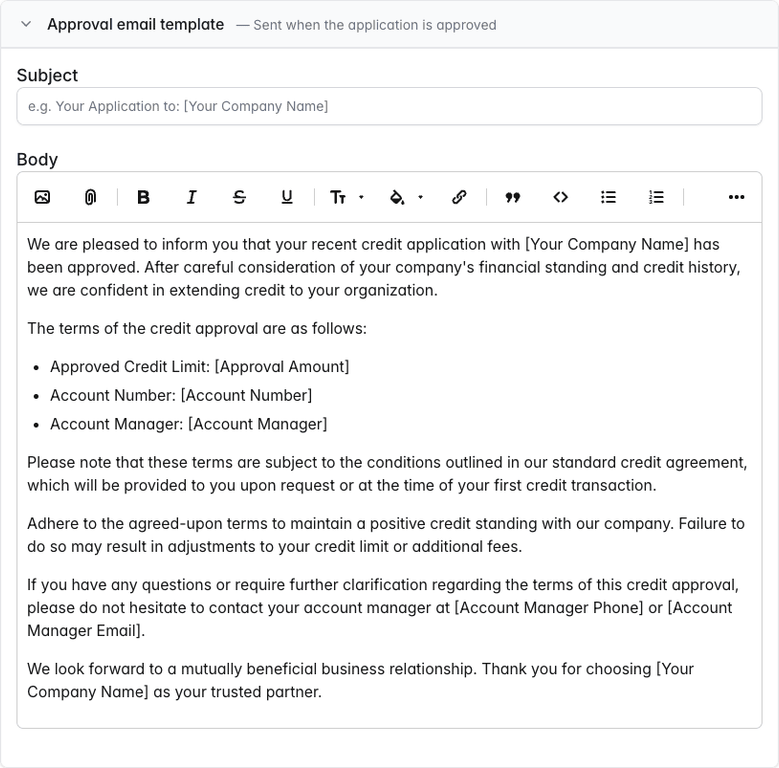
The approval email template expanded, with an empty subject box and a body of approval wording containing several bracketed placeholders. - Type the subject line you want in Subject. Placeholders work here too, and leaving the box empty makes Credlab use Your Application to: followed by your company name.

The subject box filled in with a line reading Your credit application with Your Company Name has been approved. - Change the wording in Body. It is a normal editor, so you can rewrite a sentence, add a paragraph, make a list, add a link or paste a placeholder where a detail belongs.
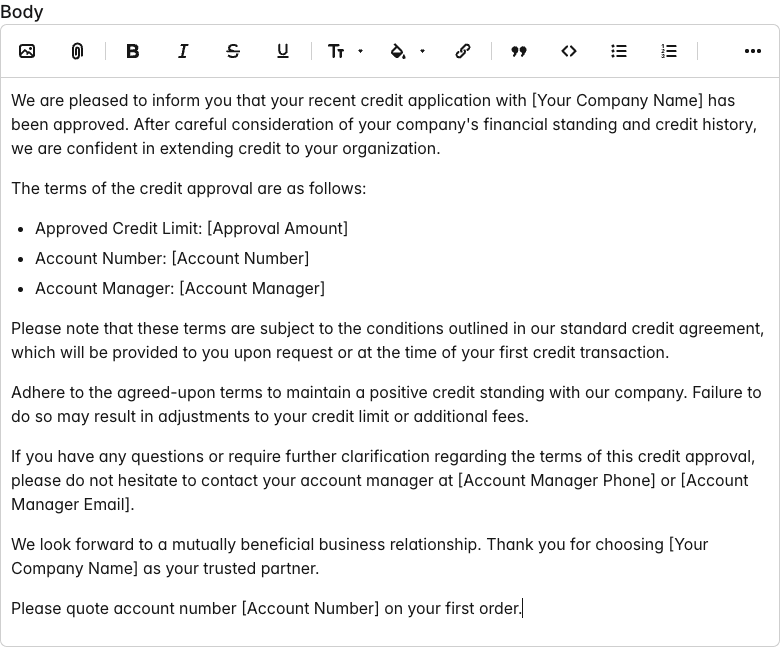
The approval body with a new closing line added, reading Please quote account number Account Number on your first order. - Click Save Templates at the bottom of the page. The page reloads with a confirmation across the top and every template collapsed again.
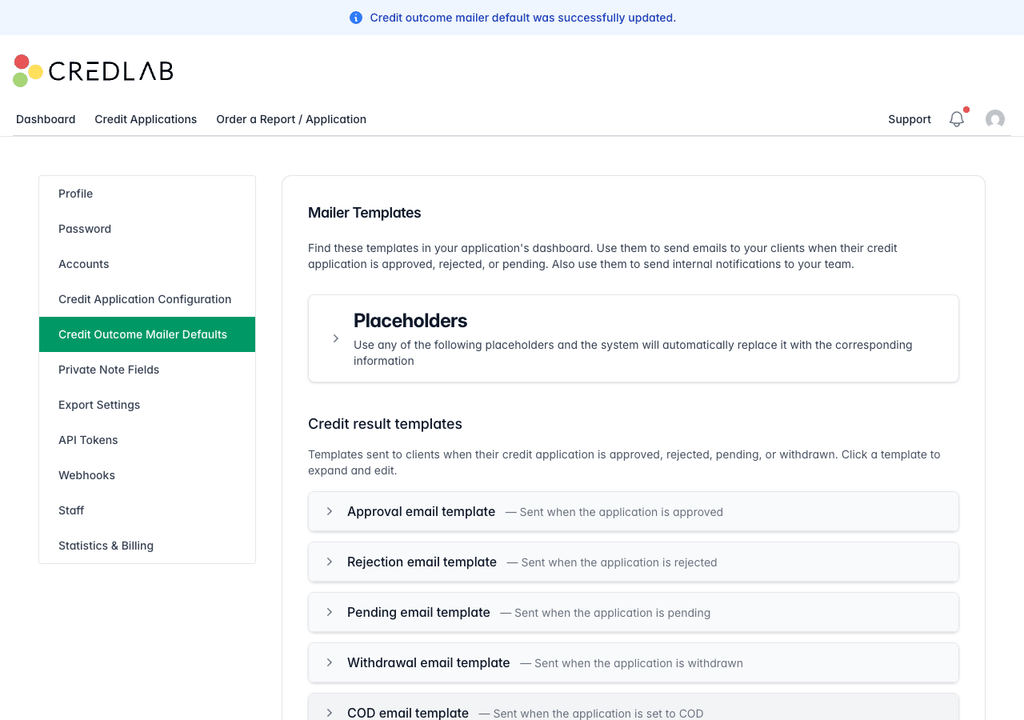
The top of the Mailer Templates page after saving, with a confirmation message above the placeholder panel and the collapsed templates.
Withdrawal and COD start out empty. Until you write them, opening the composer on a withdrawn or COD file gives your team a blank message to write from scratch, so they are worth ten minutes even if you use those statuses rarely.
Add an internal template for your own team
An internal template is for telling your own people something about a file: that an account has been opened, that a limit has changed, that somebody needs to follow up. It is never addressed to the applicant.
- Click Add Template under Internal notification templates.
- Click the new row to open it.
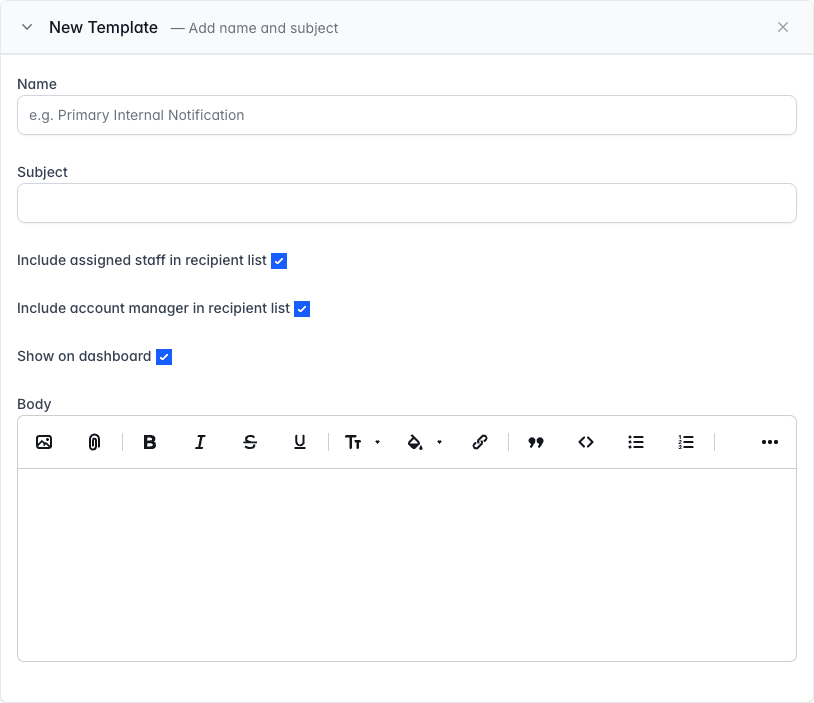
A new internal template row opened, with empty name and subject boxes, three ticked options and an empty body. - Fill the template in. Give it a Name, which is what your team picks from on the file, a Subject, a Body, and the tick boxes described below.
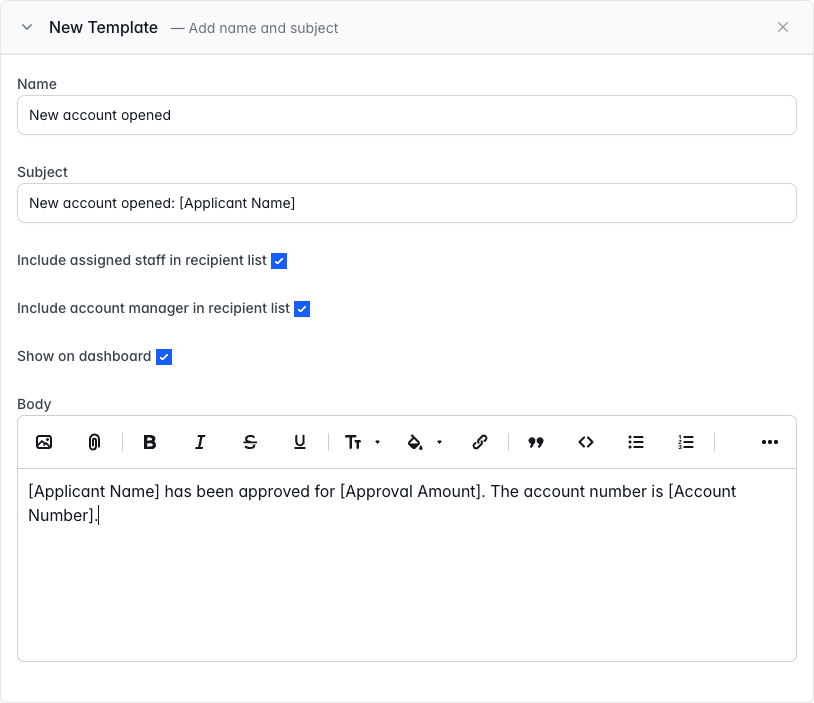
The new internal template filled in with a name, a subject, three ticked options and a short body using three placeholders. - Click Save Templates. The template settles into the list with its subject beside it and a green Shown on dashboard note.
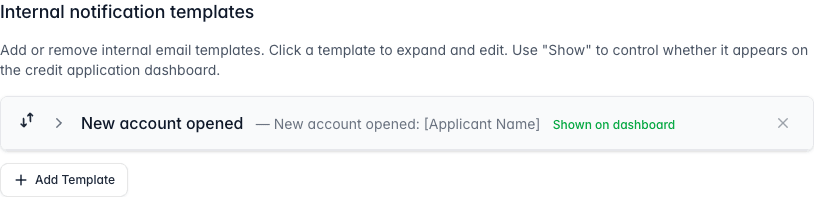
The internal notification section after saving, with the new template listed, its subject beside it and a green Shown on dashboard note.
The three tick boxes decide who the email starts out addressed to and whether the template is offered at all.
- Include assigned staff in recipient list addresses it to the staff assigned to the file.
- Include account manager in recipient list addresses it to the file's account manager.
- Show on dashboard is what puts the template on the credit file. Untick it to keep a template you are still working on out of everybody's way.
Your team now finds it on any credit file under Send from a template..., which is covered in "Send the credit outcome email".
Templates are listed in the order your team sees them. Drag the grip at the left of a row to move it, and the new order is kept as soon as you let go. The small x at the right of a row removes a template, and Credlab asks you to confirm first.
Tips & notes
- Save once, not per template. One Save Templates press keeps every change on the page, so you can work through several templates in one sitting.
- Test it on a real file. Open a credit file that already has the status you are interested in and click Credit Outcome Notifier. The composer shows exactly what your wording turns into, with the file's own details filled in. Nothing is sent until somebody presses Send Email, so it is a safe way to check.
-
Fill the file in and the blanks fill themselves.
[Approval Amount],[Account Number]and the three account manager placeholders come from the file, so a template that keeps coming out with brackets in it usually means those details are not on the file yet rather than that the template is wrong. See "Record the decision and assign your team". - Who the applicant emails go to is set elsewhere. Credit result emails are addressed to the applicant's signers and guarantors, the account manager, and the first person on the file for each staff type marked to receive outcome emails. Change that in your staff types, not here. See "Manage staff types".
- Your own custom fields can be placeholders too. If your account has custom fields under Private notes & options, a second table appears under the placeholder list with a placeholder for each of them, so a template can quote something only your team records.
- One set of templates, whatever language the applicant used. Credlab does not keep a French version of these templates. If you write to French speaking customers, edit the message in the composer before sending it.
- Wording everybody edits is wording to change here. If your team keeps rewriting the same sentence on every file, fix it once in the template rather than every time.
Related articles
- Send the credit outcome email
- Record the decision and assign your team
- Manage staff types
- Build your application form with the form builder