Bank verification lets an applicant connect their business bank account through Plaid while they are filling in your application form, instead of typing a bank name and an account number and leaving your team to chase statements afterwards. As an admin you decide two things: whether that connect option appears on your form at all, and whether an applicant has to use it before they can submit. Both settings live on your Application Settings page, and the form builder adds a pair of rules for the cases where only some applicants should be asked. This article covers where each setting is, what it does to the banking step, and what your applicants see.
Before you start
- You need to be an account admin. Everyone on your account can send your application link, but only admins can change what it asks for.
- Bank verification is an add-on, so it is off until Credlab switches it on for your account. Until then the section described below holds a request button instead of settings, and your form collects bank details by hand. See "Request bank verification".
- The settings are in two places. Application Settings holds the account-wide ones. The banking section in the form builder holds the rules that narrow them, and the switch that drops the bank fax and email boxes. Builder changes reach applicants only when you publish, so see "Build your application form with the form builder" first.
- Changing any of this affects applications started from then on. Applications already submitted keep the form and the rules they were filled in under.
Find the bank verification settings
- Open Credit Application Configuration from the menu behind your profile picture in the top right corner.
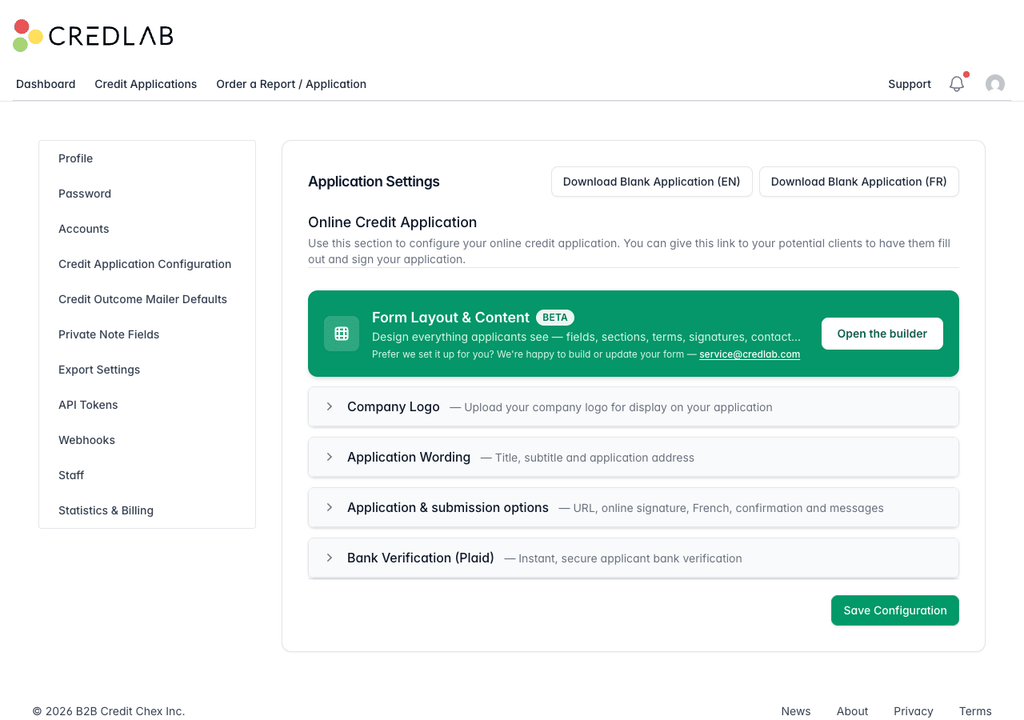
The Application Settings page with the green Form Layout and Content panel above four collapsed sections, the last one Bank Verification. - Click Bank Verification (Plaid), the last of the collapsed sections. It opens in place.
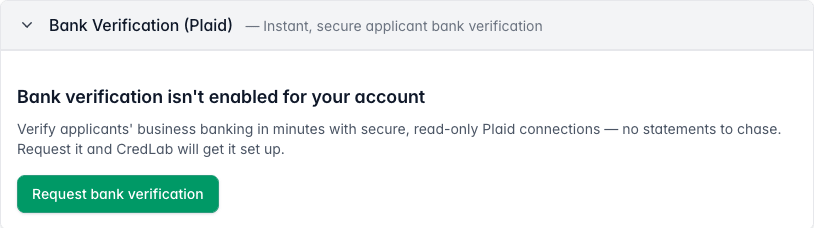
The opened Bank Verification section saying bank verification is not enabled for your account, with a green Request bank verification button.
What the section holds depends on whether bank verification is on for your account. The picture above is an account it has not been switched on for yet: a short explanation and a Request bank verification button, which sends Credlab the same request as the button on a credit file. One request per account is enough, and someone gets in touch about setting it up. Once that is done, the same section holds the settings below instead.
The settings you get once bank verification is on
Once Credlab switches bank verification on for your account, the section holds three settings in place of the request button, in the order they appear below.
Enable Plaid bank verification is the switch that puts the connect option on your form. With it on, your banking step leads with an invitation to connect the business bank account through Plaid, offers a secure link the applicant can pass to whoever holds the bank login, and keeps the manual bank fields below as a fallback. With it off, the banking step is the plain manual form and nothing about Plaid is shown.
Connection link expiry (days) is how long one of those secure links stays usable. It takes a number from 1 to 30 and starts at 7. It covers the links your own team generates on a credit file as well as the ones applicants generate for themselves, so raising it gives a slow controller more time and lowering it closes the window sooner.
Require Plaid bank verification is the switch that makes the bank part compulsory. With it on, an applicant cannot leave the banking step until it is settled, and the next section explains what settles it. The switch only bites while the connect option is enabled and actually being shown, so it is safe to leave off while you are still deciding.
Click Save Configuration at the bottom of the page after changing any of them. Nothing here is a draft: these settings take effect on your live form as soon as you save.
What requiring a connection really asks of an applicant
Requiring a connection never leaves a legitimate applicant with no way to submit. Credlab lets the banking step pass as soon as any one of these is true.
- The business bank account is connected through Plaid.
- The applicant has generated a secure link for whoever manages the account and that link is still valid. They carry on with the rest of the application, and the other person connects the account afterwards.
- The applicant opened the Plaid window at least once and then filled in the bank name and the account number by hand.
Until one of those holds, the step refuses to go on and tells the applicant they can connect, send the secure link, or try connecting and then enter the details themselves. If Plaid itself is down when they reach the step, the requirement steps back on its own: the page says the bank connection is temporarily unavailable, and a secure link the applicant already sent still settles it, or the typed bank name and account number are enough.
The requirement applies only on the step your banking section sits on. Nothing else on your form changes.
Ask only some applicants to connect
The account-wide switches treat everyone the same. When you only want to offer or insist on a bank connection for some applicants, say those asking for more than a certain amount of credit, the banking section carries its own pair of conditional rules.
- In the form builder, click Banking in the steps list. The banking section is drawn on the canvas as the bank fields your applicants fill in.
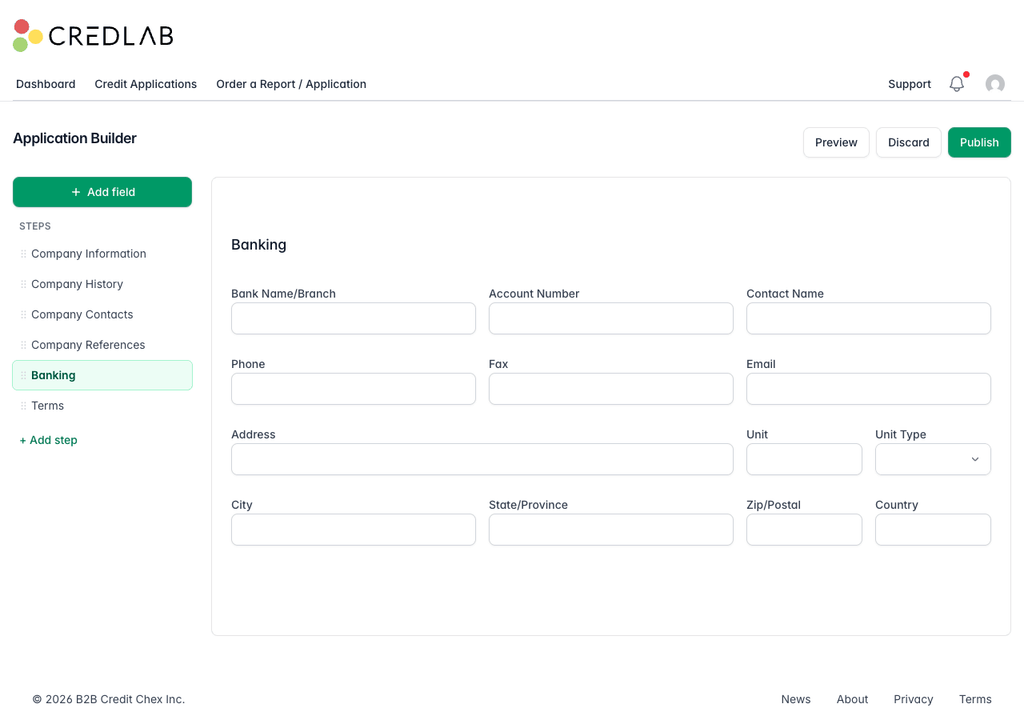
The form builder with Banking selected in the steps list and the bank name, account number, contact and address fields drawn on the canvas. - Click the block of bank fields on the canvas. The banking section is selected as one piece and its settings slide in from the right.
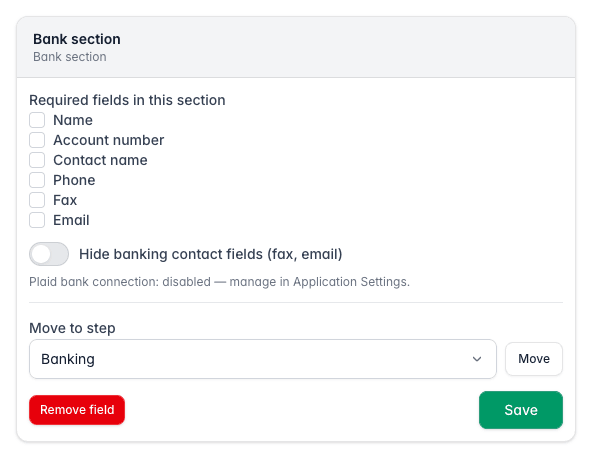
The Bank section settings panel listing required fields, a Hide banking contact fields switch, and a line reporting the Plaid connection status. - Click Save at the bottom of the panel, then publish your draft when you are happy with it.
The panel always holds three things: Required fields in this section, where you tick which of the manual bank boxes an applicant must fill in, the Hide banking contact fields (fax, email) switch, and a line telling you whether the Plaid bank connection is on for your account and reminding you that you manage that in Application Settings.
When it is on, a Plaid verification block appears underneath with two more rules, written exactly like any other condition in the builder:
- Show the Plaid option only when… keeps the connect option and the secure link card off the page until the answer you name comes in. Its default, Always shown, means every applicant is offered them.
- Also require a bank connection when… makes the bank part compulsory while the answer you name holds. Its default, Never, means no rule.
Each rule points at an answer from an earlier step, the same way rules on ordinary fields do. See "Add conditional rules to your form" for choosing a trigger and its answers.
Two things are worth knowing before you rely on them. The account-wide Require Plaid bank verification switch beats the second rule: while it is on, everyone who is shown the option has to satisfy it, and the rule cannot soften that. And an applicant who is not shown the option can never be required to use it, so a show rule that hides it also switches the requirement off for that applicant.
What your applicants see
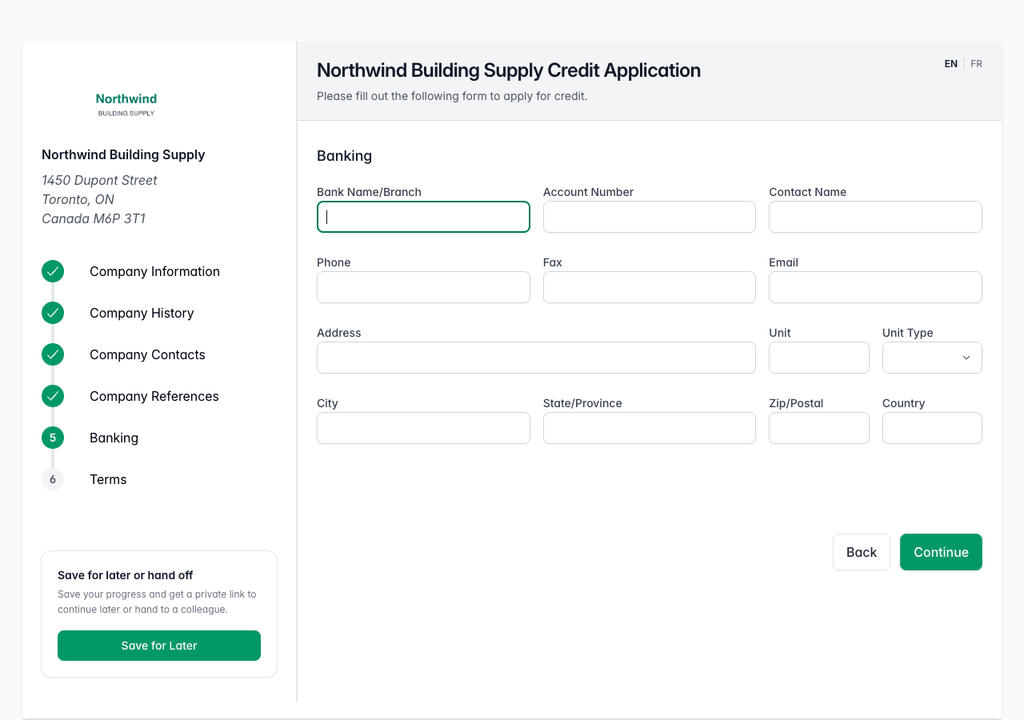
With the connect option off, the banking step is a plain form: bank name and branch, account number, a contact name, phone, fax, email and the bank's address.
With it on, the same step leads with two cards and keeps those fields below them. The first card invites the applicant to connect the account and explains that the login details are never shared, that the access is read only, and that it takes about thirty seconds. The second card is for applicants who do not hold the bank login: it hands them a secure link to send to a colleague, and says they can carry on with the application straight away. The manual fields are still there, collapsed under a heading about entering the information by hand, and they open on their own if a connection attempt does not finish. "Request bank verification" describes the connect page the other person opens.
Tips & notes
- Hiding the bank fax and email boxes. The Hide banking contact fields (fax, email) switch in the banking section settings drops those two boxes from the manual bank fields and leaves everything else. Use it when those fields only ever come back empty.
- Required bank fields are a separate question. The ticks under Required fields in this section decide which typed bank details are compulsory, and that only applies before an applicant connects a bank account. They are not changed by the Plaid settings. Once an applicant connects, the banking step shows only the confirmation card, so those fields are never shown and nothing about them is validated.
- Rules live in your draft. The two Plaid rules are part of the form layout, so they reach applicants only when you publish, and publishing is blocked if a rule points at a question you have since removed or moved to a later step.
- The link lifetime cuts both ways. A short expiry keeps stale links from floating around, but a link that runs out has to be generated and sent again. Seven days suits most teams.
- Requiring a connection costs you some applications. Some applicants will not connect a bank account to a form no matter what the page says. The middle ground is to leave the option on and the requirement off, or to require it only above a credit amount where the extra confidence is worth it.
- Check how it landed on the file. When an application arrives, its Bank Verification panel says whether the account was connected, whether a secure link is still outstanding, whether someone tried and did not finish, or whether the details were simply typed in. See "Request bank verification".
- Manual entry lasts until a connection is made. Before an applicant connects a bank account, they can always type their bank details by hand instead, and that is what your form collects when Plaid is unavailable. Once they connect, the banking step drops the manual fields and does not ask for them again.
Related articles
- Request bank verification
- Build your application form with the form builder
- Add conditional rules to your form
- Share your application link and receive applications