The Credlab report is the answer to the report you ordered. It is not a raw data dump: Credlab does the research, reads it, and writes a recommendation on top of it, so the first thing you see is a credit limit, how quickly the applicant pays, and how risky the account looks. Underneath that sit the things those conclusions are built on: anything legal on the record, what the applicant told you, what its suppliers said, what is on file about its trades, and its banking. This article covers opening the report, what each section holds, and how to keep a copy.
Before you start
- Opening a report needs the Can view reports permission, or you need to be an account admin. Without one of the two, the Credlab Report line is not listed on the file at all.
- The report also has to be released to you. Credlab does that when the work is finished, so a file can have its research under way and still show nothing to read yet.
- There is nothing to fill in and nothing to save. The report is Credlab's work and you cannot edit it. If something in it looks wrong, ask rather than work around it.
- Sections with nothing to report are left out completely. Two reports on two different applicants will not have the same headings, and a missing heading means there was nothing to say, not that something failed.
Open the report
- Open the credit file you want to read. If you are not sure where it is, see "Find and open a credit file".
- Look at the Reports/Documents card in the right column. The Credlab Report line is the report itself, and the badge beside it tells you where the file has got to.
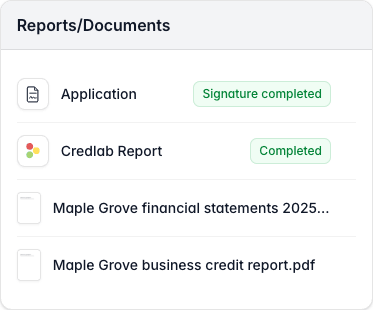
The Reports slash Documents card for Maple Grove Landscaping listing Application, Credlab Report with a Completed badge, and two attached documents. - Click Credlab Report. The report opens in a window over the file, starting at the top.
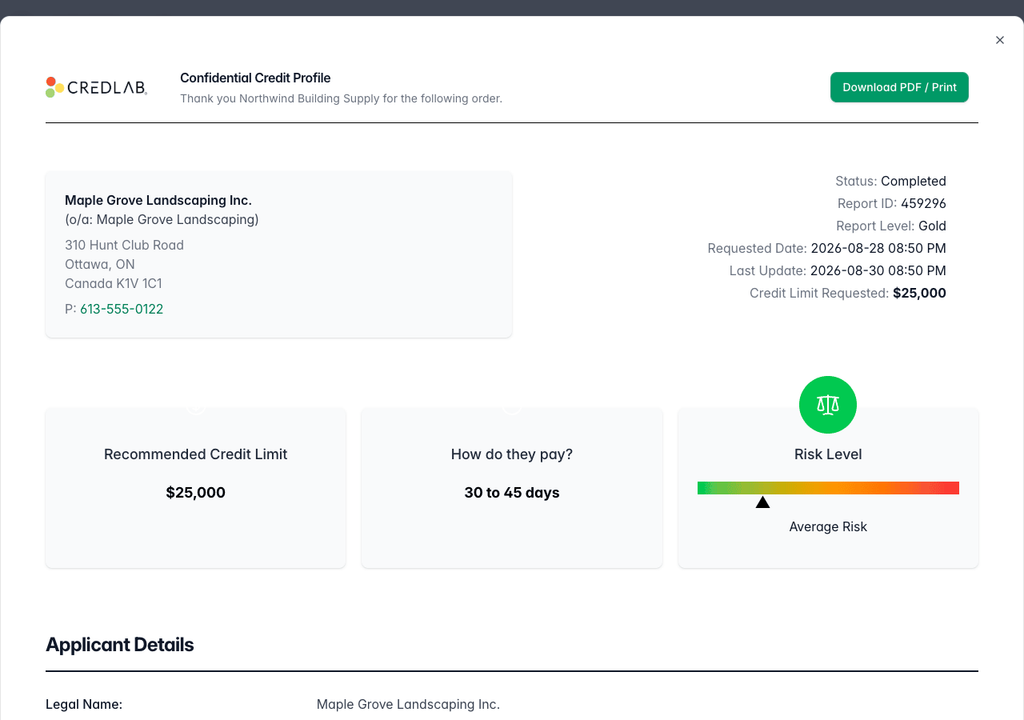
The top of the Credlab report for Maple Grove Landscaping showing the order details, the Download PDF slash Print button and the three summary cards.
Close the window with the cross in the top corner when you are done. Nothing you do while reading changes the file.
The shape of a report
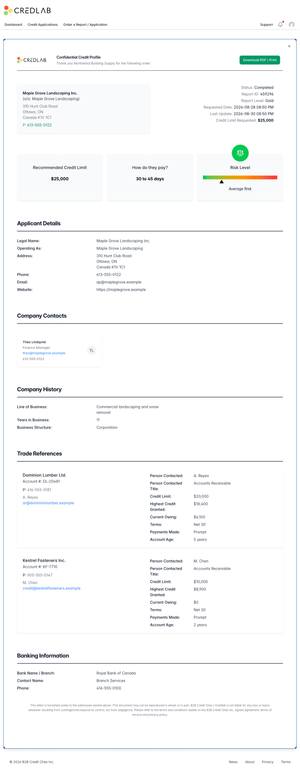
Every report is built in the same order, and you can read it end to end or jump to the part you care about. This is the whole of a finished report on one file, from the summary at the top to the banking section at the foot.
The header and the three cards
The block at the top right is the order itself. Status is where the file stands, Report ID is the number to quote whenever you ask Credlab about it, and Report Level names the level that was ordered. Requested Date is when the file came in and Last Update is when Credlab last worked on it, which on a finished report is the moment the work was signed off. Credit Limit Requested repeats the figure the applicant asked you for, so you can hold it against what Credlab recommends. On the left is the applicant as Credlab has it: legal name, the name it operates as, its main address and its phone number.
Under that are the three cards that carry Credlab's answer.
- Recommended Credit Limit is the figure Credlab suggests you extend. Read it next to Credit Limit Requested in the header: the two often differ, and the difference is the point.
- How do they pay? is the time to expect between invoice and payment, written as a range rather than a single number.
- Risk Level is the overall verdict, shown as a marker on a bar that runs from green at the left to red at the right, with the level named underneath it. Below Average Risk sits at the green end and the cautionary levels sit at the red end.
Each card can carry a line of explanation from Credlab under the figure, and the figure itself is coloured when Credlab has flagged it: green for comfortable, amber for watch it, red for a problem.
What Credlab writes in its own words
Three blocks can follow the cards when Credlab has something to say beyond the numbers. Recommendations is the advice in plain language, for example how to stage a limit or what to ask for before shipping. Observations is anything worth knowing that does not fit a field, and Financials carries figures the applicant supplied or Credlab found, laid out as they were given. Each of the three appears only when it has been written, so a straightforward file can go from the cards straight into the detail below.
Corporate Name Search is the next block when the report includes one. It lists the registrations the name search turned up, a card each, with the registration type, the registered name, the reference number, the date it was created, its status and the city it is registered in. This is how you confirm that the company you are about to extend credit to is the company that is actually registered, and under what name.
Legal and collections
When the research finds anything on the public record, the report carries a Legal and Collections Overview. It opens with Credlab's summary of what was found, a line each for Suits Reported, Judgments Reported, Collections Reported, NSF Reported and Security Filings, written only where there was something to write. Under those are the tables, one per kind of item, covering bankruptcy filings, legal suits, collection items, judgements, tax liens, liens, UCC filings and sanctions list checks. Each row summarises one item and opens to show the full record: the dates, the court, the plaintiff and defendant, the amounts and the reason. Where Credlab holds the individual records in full, they are repeated further down under Legal Records, Liens, Bankruptcy Records and Collection Records.
Every one of these sections is left out when there is nothing to show, which is the normal case. A clean applicant simply goes from its corporate name search straight into what the applicant told you.
A word of caution on collections. Credlab prints the note the collection agency reported, and accounts are sometimes placed for collection while they are still in dispute. Treat a single collection item as a question to ask, not a verdict.
What the applicant told you
Applicant Details, Company Contacts and Company History repeat the application as Credlab has verified it: legal and operating names, every address on file, phone, fax, email and website, the people to deal with, and the background of the business, including its line of business, years in business, business structure, tax numbers, and whether it needs a purchase order on every job.
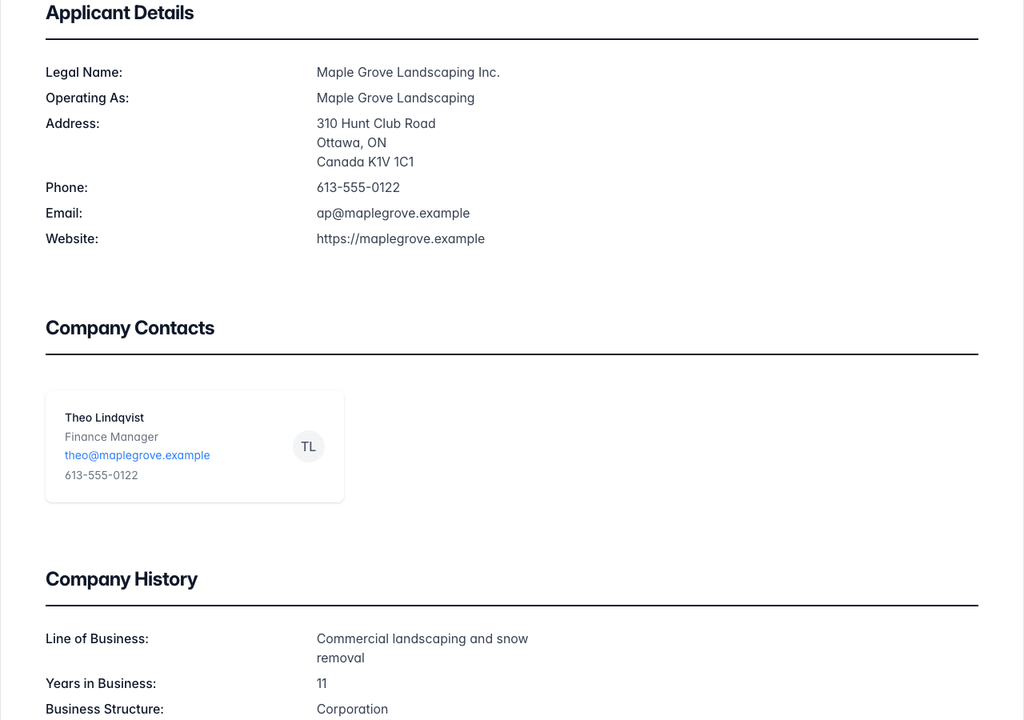
This is worth a careful read even though the applicant wrote it, because Credlab corrects it against what the research turns up. A legal name or an address here that does not match what you have on your own paperwork is worth asking about.
Trade references
Trade References is what the suppliers the applicant named actually said. There is one panel per reference. The left side repeats the supplier: name, the account number the applicant trades under, address, phone, fax, a contact name and an email address.
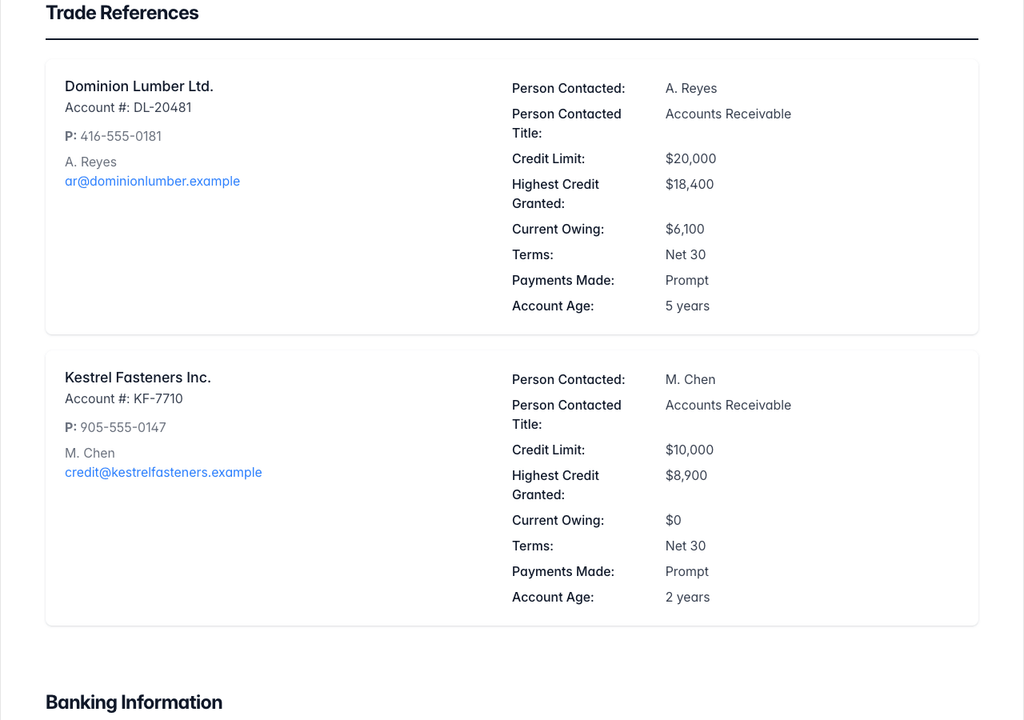
The right side is the answer, and it appears once the supplier has replied and Credlab has taken the reply onto the file. It can carry who was spoken to and their title, the credit limit and the highest credit ever granted, the amount currently owing, the terms, the amounts sitting in Past Due Term 1, Past Due Term 2 and Past Due Term 3, the buckets the supplier reports as past due relative to its own terms rather than fixed 30, 60 and 90 day windows, how the applicant pays, whether anyone else has been asking about it, whether there have been NSF cheques or reminder calls, how long the account has been open, the date of the last sale, and any comments the supplier added. Only the fields the supplier answered are printed, so a short panel means a cautious supplier, not a missing reply. Where these requests come from is covered in "How trade references work".
Two figures do most of the work here. Highest Credit Granted tells you what another supplier was willing to risk, which is a useful sanity check on the limit you are considering. Current Owing against Terms tells you whether the applicant is running its account the way it agreed to.
On file trade data
Trade references are suppliers the applicant chose. On File Trade Data is the trade information Credlab already holds from other credit grantors, which nobody chose. When there is any, it opens with a summary table of three rows, the last 90 days, the last 13 months, and all references combined, each showing how many credit references are on file, the high credit, the total owing, how much of that is current, and how much is sitting in each of the three past due periods. Under the summary is Individual Reported Trades, a line per trade with its type, the date it was reported, the last sale, the terms, the highest credit and the current owing. Click a line to open the rest of it, the current amount and the three past due buckets.
Read the two together. Good chosen references and thin or unhappy on file data is a different picture from both agreeing.
Banking information
Banking Information is the applicant's bank as it appears on the file: the bank name and branch, the branch address, a contact name, phone, fax and email, the account type and the account number, and any notes.

When the applicant has connected its bank account rather than typing the details in, this section carries more. A Verification Status line tells you the account was connected and when it was verified, and under it comes a summary of what the connection showed: the range of history read, average monthly deposits, average monthly withdrawals, how many NSF or overdraft items were found, and the number of transactions behind those figures. A plain language summary of the applicant's financial health and the transaction history itself follow. Asking for that connection is covered in "Request bank verification".
Keep a copy
- Click Download PDF / Print at the top of the report. The button changes to "Creating PDF, Please wait..." while the file is built.
- The report arrives as a PDF. Open it to read it full size, print it from there, or file it with the rest of the paperwork on the account.
The PDF is the same report laid out for paper, so it is the version to attach to an internal approval or hand to whoever signs off the limit.
Tips & notes
- The report is a snapshot of the day the work was done. For a fresher view on an applicant you checked a while ago, order a report update. See "Order a business credit report".
- Ordering an update takes the old report off the file while the new research runs, so download the PDF first if you want to keep the old one to compare.
- If a figure looks wrong, or a reference you were expecting is not there, use Questions? at the top of the file. The question goes to Credlab with the file attached, so there is nothing to explain twice.
- Quote the Report ID from the header. It is the same number the file carries on its Status & Orders card.
- A missing section means there was nothing to report, not that the report is incomplete. The one thing worth chasing is a trade reference panel with no answer on it.
- Once you have read the report, record what you decided on the file so the rest of your team can see it. See "Record the decision and assign your team".
Related articles
- Order a business credit report
- How trade references work
- Send the credit outcome email