A credit application is worth a lot more once the person who signed it has really signed it. Credlab handles that for you. If your application form asks for an online signature, every applicant who submits the form is emailed a link to sign the completed application, and the credit file keeps score: who was asked, who opened it, who signed, and what goes out next. You do not start the process, and in most cases you do nothing at all. This article covers what happens automatically, how to read the signature card on a credit file, how to chase a signature that has not arrived, how to correct the signers and send the request again, and where the signed copy ends up.
Before you start
- Signing is switched on for your whole account, not per application. The Online Signature switch in your application form settings controls it, and it is on out of the box. While it is on, every application that comes in through your form goes out for signature by itself.
- Who gets asked comes from the application itself. The people named in the signature section of your form, plus any personal guarantors, are the signers. How many of each your form asks for is part of your form setup.
- Signing runs through DocuSeal, so the page your signer lands on is DocuSeal's. There is nothing for them to install and no account to create.
- Applications you key in yourself when ordering a report are not sent for signature when you submit them. Only applications submitted through your form go out automatically. That said, if you later open one of these applications and use Edit Request to add or correct signers, saving does send a signature request at that point, the same as it does for a submitted application.
How the signature request goes out
Nothing here needs you, but it helps to know the order things happen in.
The applicant fills in your form and submits it. Credlab builds a PDF of the completed application, with a signature block for each signer, and hands it to DocuSeal. The applicant's own confirmation page then tells them the application is almost complete and asks them to check their email, naming the addresses the request went to.
Each signer gets their own email, from Credlab Signature Request, with the subject Your company name - Signature Request. It carries your logo if you have uploaded one, the heading Please Sign Your Credit Application, a Sign Document button, your company name at the bottom, and the same link again in plain text underneath for anyone whose email program blocks buttons. It is written in whichever language the applicant filled the form in.
The button opens the signing page, where the signer reads the completed application and signs it. Each signer signs separately, and one person's signature does not depend on another's.
As those emails are delivered, opened and signed, the credit file updates itself. That is what the Signature(s) card shows you.
Check who has signed
- Open the credit file you are working on. If you are not sure where it is, see "Find and open a credit file".
- Scroll the right hand column down to the Signature(s) card.
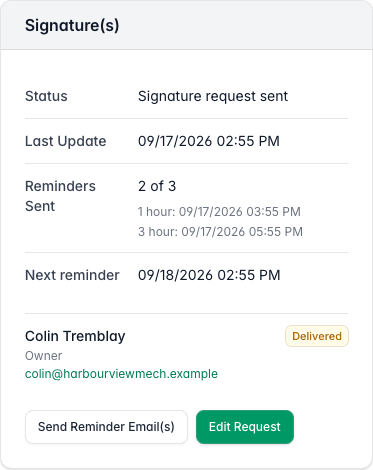
The Signature card on a credit file showing the status, the reminder log, a next reminder date and one signer marked Delivered.
The top half of the card is about the request as a whole. Status is where the file stands, Last Update is when that last changed, Reminders Sent counts the automatic reminders that have gone out and lists when, and Next reminder is when the following one is due. The reminder rows disappear once everyone has signed, because there is nothing left to chase.
Below that is one row per signer, with their name, their title, their email address and a badge for where they are up to. The badges follow the request through the mail system and then through the signing page: Signature Request Queued, Signature Request Deferred, Delivered, Opened/Viewed, Started, Signed, and the three that need your attention, Declined, Signature Request Bounced and Signature Request Marked as Spam.
The overall Status is worked out from those rows:
- No signature requested. Nothing has been asked for, either because your form does not ask for a signature or because the application was keyed in rather than submitted.
- Signature request pending. The emails are with the mail server and have not been delivered yet.
- Signature request sent. Every signer has had their email.
- Waiting on additional signature(s). At least one person has signed and at least one has not.
- Signature completed. Everybody has signed.
- Signature request failed. Somebody's email bounced, was marked as spam, or the signer declined to sign.
- Attachment signed. The file holds a signed copy of the application that was not signed online.
Chase a signature that has not arrived
Credlab chases for you first. While a file is waiting on a signature, it sends a reminder one hour, three hours and twenty four hours after the last change to the signature status. The reminder is the same email as the original request, and it only goes to people who have not signed yet. Automatic reminders stop after the third one, and they stop altogether once the file is more than two days old, on the basis that an application nobody has signed in two days needs a phone call rather than another email.
If you want to nudge sooner, or after the automatic ones have run out, send one by hand:
- Open the credit file, then click Send Reminder Email(s) at the bottom of the Signature(s) card and confirm.
Credlab asks you to confirm first, and the confirmation dialog asks you to only use the button once an hour. Nothing stops you from clicking it again sooner though: every click sends another full round of reminder emails, so treat the once an hour request as a courtesy to your signers rather than a limit the button enforces. Like the automatic reminders it goes only to people who have not signed, and it skips anyone who declined or whose email bounced or landed in a spam trap: chasing those addresses again achieves nothing, and the fix is a different address.
Once every signer has signed, the reminder button goes away.
Correct the signers and send the request again
A wrong email address, a missing guarantor or a contact who has left the company all end the same way: the request has to go out again to the right people.
- Open the credit file and scroll the right hand column to the Signature(s) card.
- Click Edit Request.
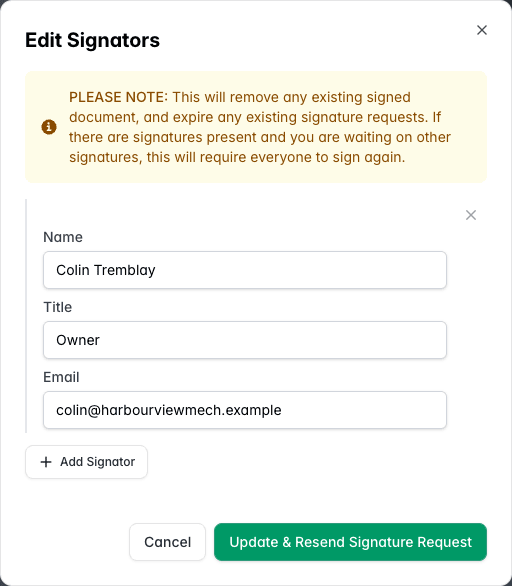
The Edit Signators window listing one signer with name, title and email fields, an Add Signator button and a warning in yellow. - Correct a name, title or email address, click Add Signator to add another person, or click the small x at the top right of a row to take one out.
Read the yellow note before you click Update & Resend Signature Request, because this is not a gentle edit. Saving removes any signed document already on the file, expires the signature request that is out there, and starts a completely new one. If two people were asked and one of them had already signed, that signature is gone and both of them have to sign again. Everyone on the list gets a fresh email, the per signer badges reset, and the reminder count starts again from zero.
- Click Update & Resend Signature Request.
Cancel closes the window and changes nothing, which is what you want if you opened it to check an address rather than to change one.
Find the signed application
The signed copy is not filed away somewhere separate. It replaces the application on the credit file.
- Open the credit file you want the signed copy from.
- Look at the Reports/Documents card at the top of the right hand column.
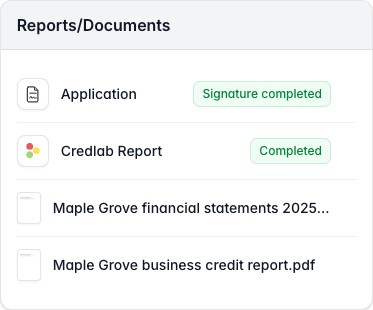
The Reports Documents card on a completed file, with the Application row badged Signature completed above the Credlab Report and two attachments.
The Application row is always there, and the badge beside it repeats the signature status, so you can see at a glance whether the copy behind it is signed. Click the row to read it in a preview window over the file, and download it from there if you need a copy for your records.
With more than one signer the row is worth watching. As soon as the first person signs, Credlab stores the application with that signature on it, so opening the row shows you a genuinely part signed document rather than a blank one, and the badge reads Waiting on additional signature(s). When the last person signs, the fully signed version replaces it and the badge turns green. Credlab only ever emails the fully signed copy, so a part signed application stays inside your team.
Tips & notes
- Where signing is switched on. The Online Signature switch lives in your application form settings, and its description is worth reading: your applicant receives an email that sends them, through a link, to a site where they digitally sign the application. Switching it off means applications arrive unsigned and the Signature(s) card never appears. How many signers and guarantors your form asks for is set in the form builder. See "Set up your terms, signatures and personal guarantee".
- One email address, one request. Signers are matched by email address. If the same person is named twice, or two signers share a mailbox, that address gets one request covering both signature blocks rather than two emails.
- Placeholder email addresses in the signature section stop everything. If any signer named in your form's signature section (not a personal guarantor) has an email address containing the word "noemail", which is the usual stand in when you have no address for somebody, Credlab sends no signature request for that application at all, not even to the signers who do have real addresses. A personal guarantor with a placeholder address does not hold up the rest of the request. Put a real address in through Edit Request and save to get the request moving.
- A blank signing page is almost always the network. Ad blockers, browser privacy settings and corporate firewalls sometimes block docuseal.com, and the signing page then cannot draw itself. Credlab notices and replaces it with an explanation and a direct link to the form. Tell the signer to try a different browser, or their phone off the office wifi.
- Bounced means wrong address. A bounce or a spam trap is not something reminders fix. Get a working address, put it in through Edit Request, and let the new request go out.
- Declined is a real answer. If a signer declines, the file's status goes to Signature request failed and stays there. Nothing more is sent automatically, so follow it up yourself.
- Signed does not mean approved. The signature is the applicant agreeing to your terms. Your own decision is recorded separately on the file.
- If you already hold a signed copy on paper or from another system, keep it with the file rather than chasing an online signature. Adding documents to a credit file is covered in "Request documents and manage a file's attachments".
Related articles
- Share your application link and receive applications
- Request documents and manage a file's attachments
- Set up your terms, signatures and personal guarantee