A customer you checked this year is not the same risk next year, and nobody wants to keep a spreadsheet of who is due for a fresh look. A scheduled review is a standing instruction on one credit file: on the date you pick, Credlab orders a report update on that applicant by itself, and if you asked for it to repeat, it books the next one straight after. You are warned by email a week before each review, and you can change or cancel the schedule at any time up to the moment it runs.
Before you start
- A review can only be set on a file that already has a report level on it, because a review is an update of an existing order. The Scheduled review block does not appear on a file where nobody has ordered yet. See "Order a business credit report".
- Scheduling needs the same permission as ordering: Can order reports, or an account admin's account. If you cannot order on a file, you cannot schedule on it either.
- A review can be no sooner than six months after the file was created, or today if that six months has already passed. Every scheduling window shows you the earliest date it will accept, and the date box refuses anything before it. Scheduling from an order-update window is the exception: there the clock starts from the day you order the update, not from when the file was created.
- One file carries one schedule. Setting a new one replaces whatever was there before.
- Reviews cost what the report level costs, because a review is a real order. Pick the level deliberately.
Schedule a review from a credit file
This is the way to add a review to a file that already has a report on it, and the only place you can change or cancel one.
- Open the credit file you want reviewed. If you are not sure where it is, see "Find and open a credit file".
- Read to the bottom of the Status & Orders card in the right column. Under the status list, and after the Do you wish to order a report update? block if the file is also eligible for an order update, there is a Scheduled review heading with a Schedule a review button below it.
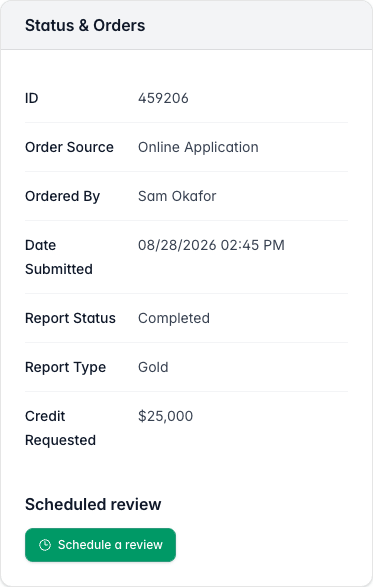
The Status and Orders card for file 459206 showing Ordered By Sam Okafor, Report Status Completed and Report Type Gold, with a Scheduled review heading and a green Schedule a review button at the bottom. - Click Schedule a review. A window opens over the file with three questions in it: when, how often, and at what level.
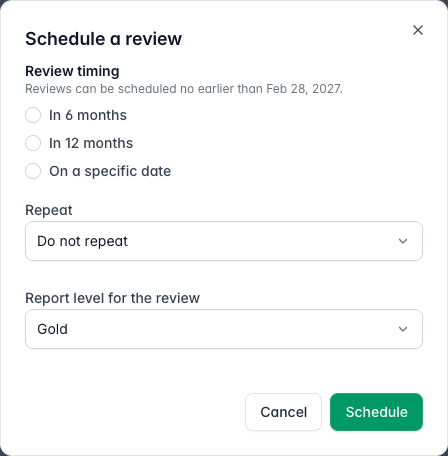
The Schedule a review window with the note Reviews can be scheduled no earlier than Feb 28 2027, three timing options In 6 months, In 12 months and On a specific date, a Repeat menu reading Do not repeat, a Report level for the review menu reading Gold, and Cancel and Schedule buttons. - Choose when the first review happens. In 6 months and In 12 months count from today. On a specific date opens a Review date box for a date of your own, which is what to use for a fiscal year end or a renewal date.
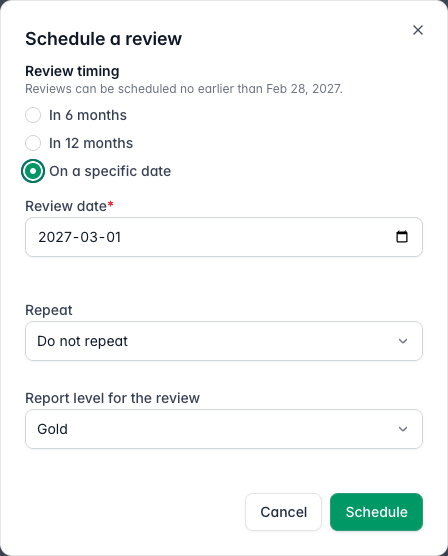
The same window with On a specific date selected and a Review date box below it holding 2027-03-01. - Choose Repeat. Do not repeat orders one review and then stops. Every 6 months and Every 12 months book the next review each time one is ordered, so the file keeps reviewing itself until you cancel it.
- Choose Report level for the review. It starts on the level already ordered on the file, and you can change it to any level your account can order except No Action Requested.
- Click Schedule. The window closes, a message confirms the date, and the Scheduled review block fills in with what you asked for and an Active badge.
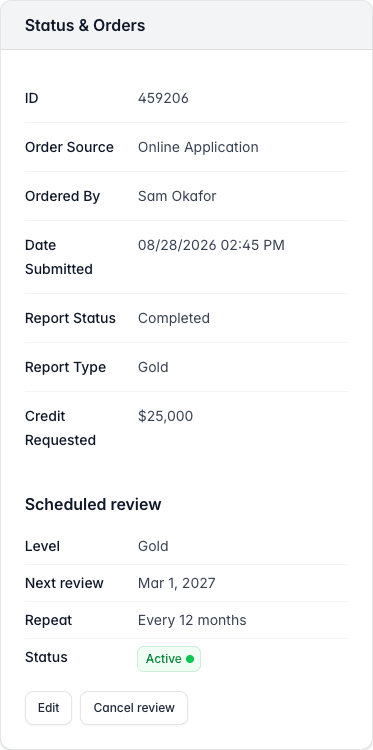
The Status and Orders card with the Scheduled review block now listing Level Gold, Next review Mar 1 2027, Repeat Every 12 months and Status Active, above Edit and Cancel review buttons.
Set the review up while you order
You do not have to come back afterwards. The order window on a file, the Quick Order form, and the order-update window all carry the same review questions, so you can book the follow-up while you place the order itself.
- Pick a level on a file, order a report update, or open Quick Order to start an order.
- On the order or order-update confirmation window, find a Schedule a review (optional) section under the confirmation sentence.
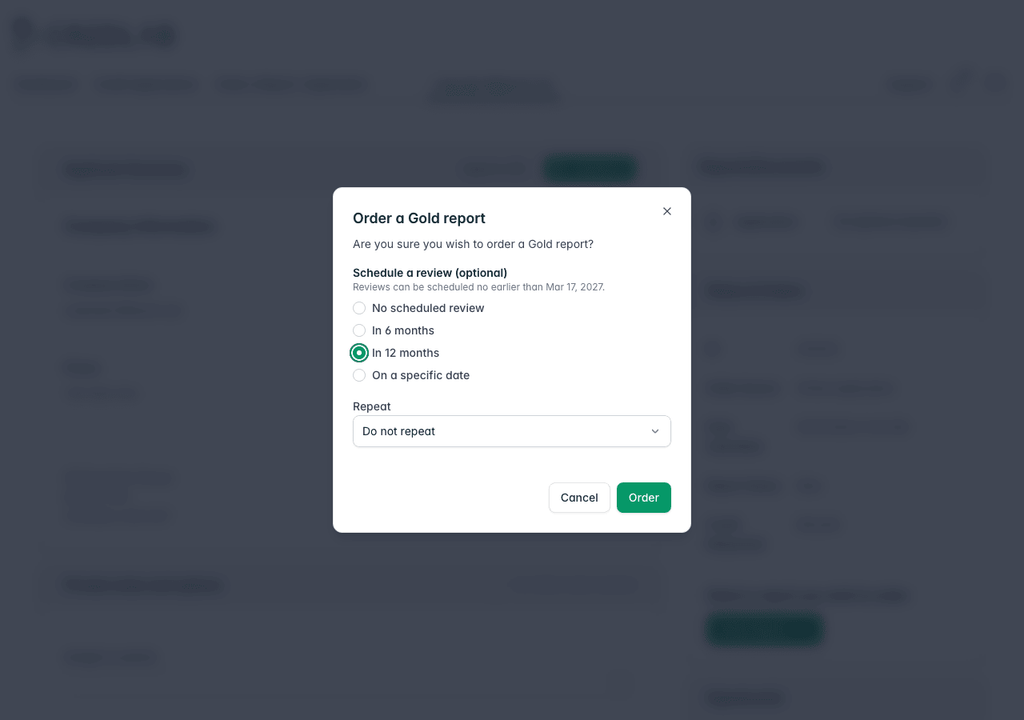
The Order a Gold report window over a credit file, with a Schedule a review optional section showing In 12 months selected out of No scheduled review, In 6 months, In 12 months and On a specific date, a Repeat menu, and Cancel and Order buttons. - On the Order a Report / Application page instead, find the same questions in their own Schedule a review card under the Quick Order form.
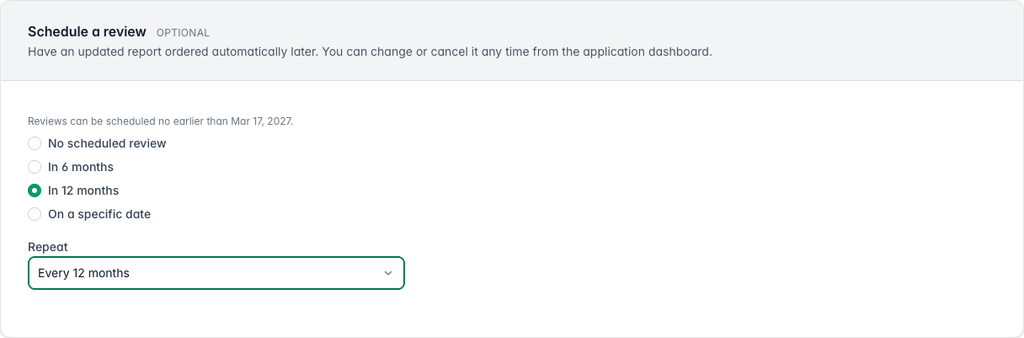
The Schedule a review Optional card on the Order a Report slash Application page, headed Have an updated report ordered automatically later, with In 12 months selected and Repeat set to Every 12 months. - Leave No scheduled review selected to book nothing and leave the order exactly as it would be otherwise, or pick a timing and a repeat to save the schedule along with the order.
- Click Order, or Order update. The file arrives, or updates, with its review already booked.
None of the three order windows asks for a level for the review, because the review uses the level you are ordering. To review at a different level, order first and then set the schedule from the file, or edit the schedule afterwards. Ordering itself is covered in "Order a business credit report".
What happens when the review is due
You do not have to watch for any of this. Credlab checks every schedule once a day, early in the morning.
A week before. Everyone on your account who has report update emails switched on gets an email naming the applicant and the date, with a button that opens the file. This is your chance to move the date or call it off. The same message appears under the bell in the top menu.
On the day. The update is ordered for you at the level on the schedule, and a second email confirms it has gone in. Nobody has to click anything.
After that. The file restarts exactly as it does when you order an update by hand: Report Status changes to Order update, the submitted date resets to today, and the earlier Credlab Report comes off the file while the new research runs. Documents already on the file stay put, and the new report joins them when it lands. If the schedule repeats, the Scheduled review block immediately shows the next date, counted from the day the review was ordered. If it does not repeat, the block drops back to a one-line summary with a Schedule another review button.
If the file is busy. A file that is mid application, waiting on a signature, waiting on the applicant, or already running an update cannot take another order on top. The review waits and tries again each day, and it goes in as soon as the current work finishes. If it has been waiting a month, the badge turns to Stuck with a line saying what it is waiting for, and you are told by email. Nothing is lost: it still orders itself once the file is free.
If the file goes away. Archiving a file cancels its schedule, and so does a report level being withdrawn from your account. The block then reads why it was cancelled, so a review never fires quietly on a file you have closed.
Change or cancel a scheduled review
- Open the file and find the Scheduled review block on the Status & Orders card. A live schedule has Edit and Cancel review buttons under it.
- Click Edit to change the date, the repeat, or the level. The window reopens on On a specific date with the booked date filled in, whichever way you set it originally, so you can nudge a date without starting again.
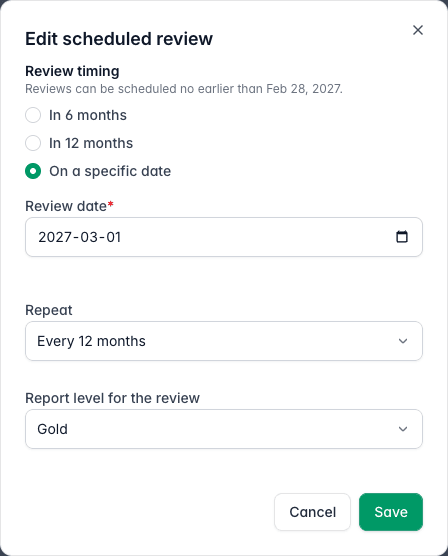
The Edit scheduled review window showing On a specific date selected with Review date 2027-03-01, Repeat set to Every 12 months, Report level for the review set to Gold, and Cancel and Save buttons. - Click Save. The block redraws with the new details and the schedule keeps its Active badge.
- Click Cancel review instead to stop it. A box asks you to confirm, naming the applicant so you cannot cancel the wrong file's review.
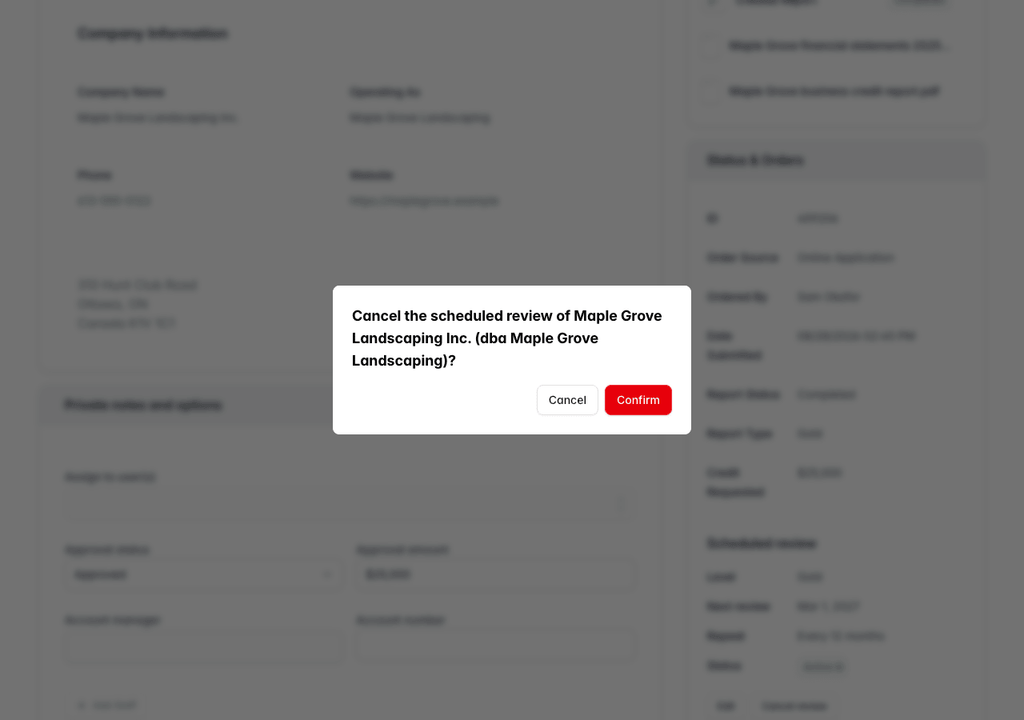
A confirmation box over the credit file reading Cancel the scheduled review of Maple Grove Landscaping Inc dba Maple Grove Landscaping, with Cancel and Confirm buttons. - Click Confirm. A message confirms the cancellation and the block now reads "Cancelled by your team" with a Schedule another review button, so the file remembers that somebody stopped it rather than pretending nothing was ever set.
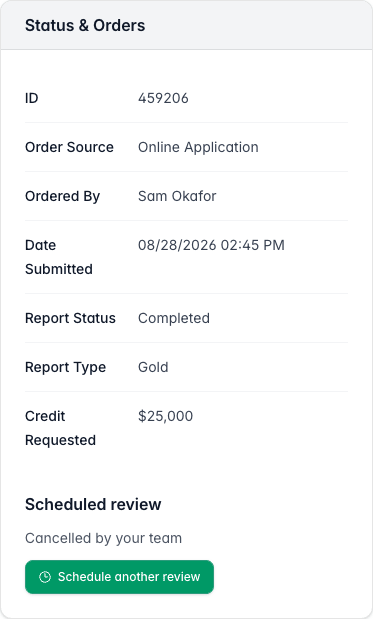
The Status and Orders card with the Scheduled review block reading Cancelled by your team above a green Schedule another review button.
Tips & notes
- A file holds one schedule at a time. Booking a new one on a file that already has a live schedule replaces it, so use Edit when you only want to move a date.
- The six month minimum is measured from when the file was created, with today as a floor, so a file created more than six months ago can be reviewed right away, while a newer file waits until its own six-month mark. Scheduling from an order-update window works differently: there the six months always counts from the day you order the update, not from when the file was created.
- Do not repeat is the safe choice when you only want one more look. You can always book another review from the file afterwards.
- Changing the level on the schedule changes it for every future review, not just the next one. The report already on the file is untouched.
- Reminder and confirmation emails follow the same Receive report update emails tick box as report ready emails, on each person's own profile, and they also skip anyone who has turned on Only receive emails from assigned applications and is not assigned to the file. Turning off report update emails leaves the bell notification working.
- Only teammates who can order reports, an account admin or someone with Can order reports, see the same Scheduled review block, so they can tell what you booked and when.
- No Action Requested is never offered as a review level. A review that orders no research would do nothing.
Related articles
- Order a business credit report
- Find and open a credit file
- Your profile and security