You do not pull the credit report yourself. You tell Credlab which report you want on an applicant, and Credlab does the research and puts the finished report back on the file for you to read. There are two places to start an order: the Status & Orders card inside a credit file, which is what you use for an application that came in through your link, and the Order a Report / Application page, which is what you use when there is no application to work from. This article covers both, what happens while you wait, and where the report lands when it is done.
Before you start
- Ordering needs the Can order reports permission, or you need to be an account admin. Without one of the two there is no Order Report button on a file and no Order a Report / Application link in the top menu. An account admin can turn the permission on for you.
- The report levels you can order are set up on your account, so the names in your list may not match the ones in this article. The examples here show an account with two levels, Gold and No Action Requested.
- Nothing is ordered until you confirm. Choosing a level opens a confirmation window, and the file is untouched until you click Order in it.
- An order is a request to Credlab, not an instant lookup. The file stays where it is until Credlab picks the work up, and you are told when the report is ready.
Order a report from a credit file
- Open the credit file you want the report on. If you are not sure where it is, see "Find and open a credit file".
- Look at the Status & Orders card in the right column. When nothing has been ordered yet, the card ends with the heading "Select a report you wish to order:" and a green Order Report button.
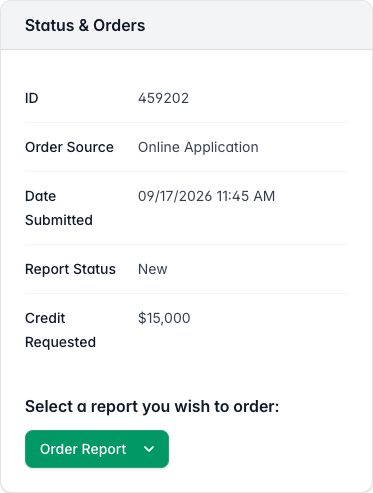
The Status and Orders card for file 459202 showing ID, Order Source Online Application, Date Submitted, Report Status New and Credit Requested 15,000 dollars, above the heading Select a report you wish to order and a green Order Report button. - Click Order Report. Every report level your account can order drops down underneath it.
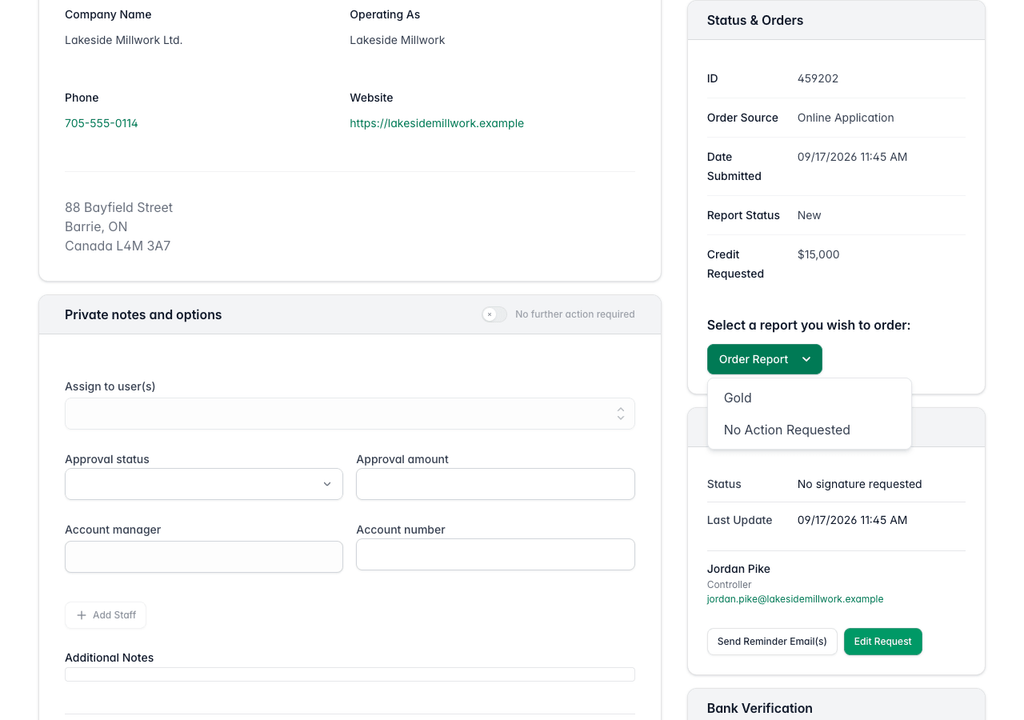
The credit file for Lakeside Millwork with the Order Report button clicked and a menu open below it listing two levels, Gold and No Action Requested. - Click the level you want. A confirmation window opens over the file, headed with the level you picked and asking you to confirm it.
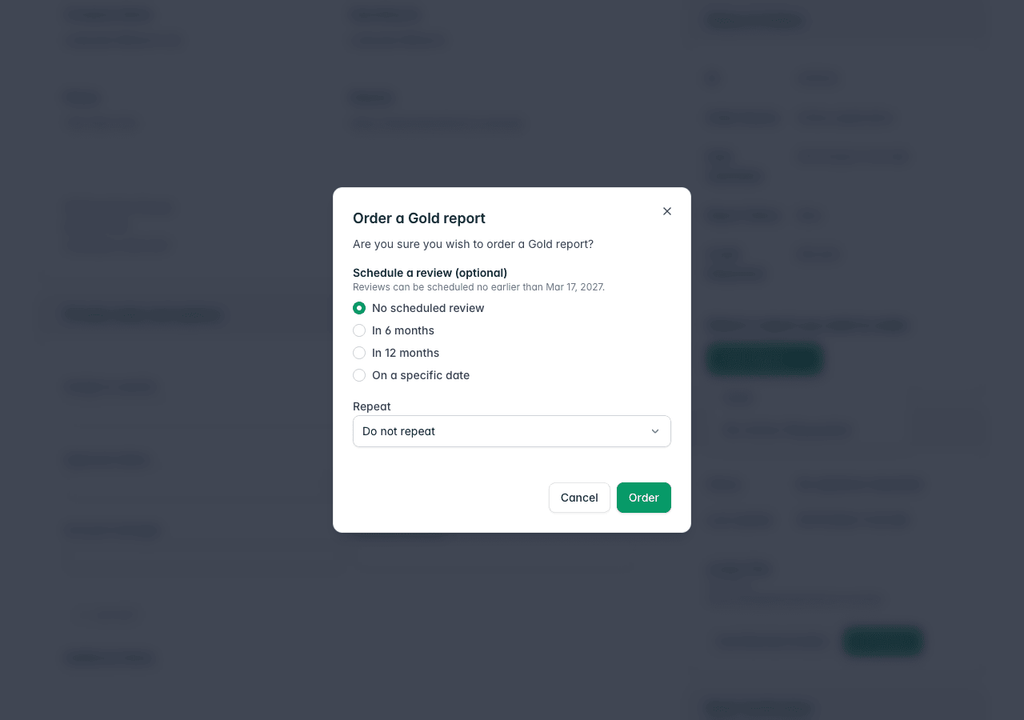
A confirmation window headed Order a Gold report asking Are you sure you wish to order a Gold report, with an optional Schedule a review section set to No scheduled review, a Repeat menu set to Do not repeat, and Cancel and Order buttons. - Leave Schedule a review on No scheduled review unless you also want Credlab to order a fresh report on this applicant later by itself. See "Schedule recurring report reviews".
- Click Order. The window closes, a message confirms the order, and the Status & Orders card redraws.
If you change your mind, click Cancel or the cross in the corner of the window. Nothing is ordered and the file is left exactly as it was.
Once the order is placed, the card changes in three ways. Ordered By appears with your name on it, the order button is replaced by a Report Type line naming the level you chose, and a Scheduled review block appears underneath. Report Status still reads New until Credlab starts the work, then moves to In progress and finally to Completed.
What the levels mean
Each level is a different depth of research at a different price, and both are agreed with Credlab when your account is set up. If you are not sure which one to pick for a particular applicant, ask before you order: the Questions? button at the top of the file sends the question with the file attached.
No Action Requested is a level like any other, but it orders no research. Pick it to record that you have looked at the application and decided you do not need a report on it. Doing that takes the file off the Pending Report Level count on your dashboard, so the tile only ever shows the files nobody has dealt with yet.
Order a report without an application
Use this when you want a report on a company that has not filled in your application form, for example a prospect you are sizing up.
- Click Order a Report / Application in the top menu. The page opens with three cards on it: your application link at the top, the Quick Order form in the middle, and an optional Schedule a review card at the bottom.
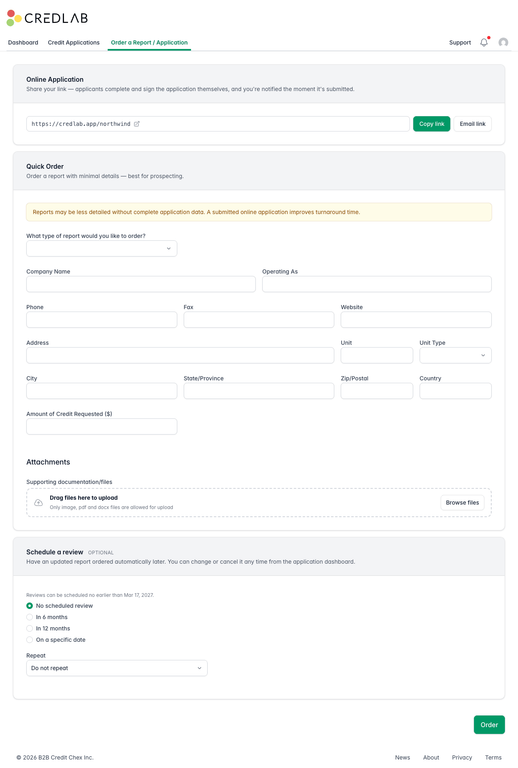
The Order a Report slash Application page showing the Online Application card with the credlab.app slash northwind link, the Quick Order card with a report type menu and fields for company name, address and credit requested, and the optional Schedule a review card, above an Order button. - Choose a level from What type of report would you like to order?. Nothing is selected to start with, so this is the one field you always have to set.
- Fill in Company Name and as much of the address, phone and website as you have. The more you give Credlab, the less chance of the research landing on the wrong company.
- Type the limit you are considering into Amount of Credit Requested ($) if you have one in mind.
- Drag any supporting files onto Attachments, or click Browse files to pick them. Images, PDFs and Word documents are accepted.
- Click Order. The order is placed, a confirmation appears, and the form empties so you can order the next one.
A quick order becomes a credit file like any other, so it turns up in your applications list with the rest of them and everything else you do to a file works on it too.
The yellow note on the card is worth taking seriously. A quick order carries only what you typed, so the report can come back thinner than one built on a full application. When the company is willing to apply properly, send them your application link instead. See "Share your application link and receive applications".
When the report is ready
Credlab tells you as soon as the work is done. Everyone on your account who has report update emails switched on gets an email naming the applicant with a button that opens the file, and a notification appears under the bell in the top menu.
- Open the file and read the Reports/Documents card in the right column. Everything Credlab produced is listed there alongside the submitted application.
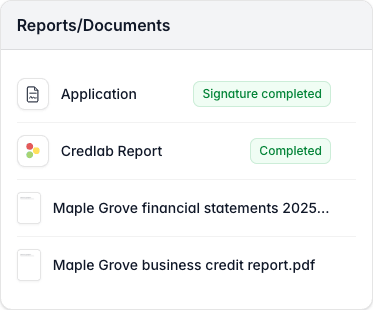
The Reports slash Documents card for Maple Grove Landscaping listing four lines: Application marked Signature completed, Credlab Report marked Completed, and two attached documents shown with a page thumbnail each, a financial statements file whose name is too long for the card and the Maple Grove business credit report. - Click a line to open it. Application is the form as the applicant filled it in, Credlab Report is Credlab's own write-up and recommendation, and the remaining lines are the documents on the file, including the credit report itself as a PDF.
Report Status on the Status & Orders card reads Completed once the work is finished. That is the report side of the file done, not the file itself: it keeps counting towards the Waiting on decision tile on your dashboard until somebody records an approval status on it. Opening a finished report needs the Can view reports permission, so if a line is listed but will not open for you, that is the permission to ask an admin about.
Order a report update
An applicant you checked a year ago is not the same risk today, so Credlab can redo the research on a file you have already had a report on.
Once the report on a file is finished and closed off, the Status & Orders card grows a second block headed "Do you wish to order a report update?" with an Order Report Update button under it. It works exactly like the first order: click the button, pick a level from the list, and confirm in the window that opens. The list of levels is the same one you ordered from, minus No Action Requested, because an update with no research would do nothing.
Ordering an update restarts the file. Report Status changes to Order update, the submitted date is reset to today, and the earlier Credlab Report is taken off the file while the new research is in progress. The documents already attached to the file stay where they are, and the new report joins them when it arrives.
The update block only shows once Credlab has closed the original order off at their end, and that can happen a while after the report itself lands on the file. So a file can read Report Status Completed, with the report sitting in the Reports/Documents card, and still have no Order Report Update button on it. If you want an update on a file and the block is not there, use Questions? on the file and ask Credlab to look at it.
Tips & notes
- Nothing leaves your hands until you click Order in the confirmation window. Opening the dropdown, reading the levels, and closing it again changes nothing on the file.
- Once a level is recorded on a file the order button disappears, so you cannot order the same report twice by accident. To get fresher information on that applicant, order an update instead.
- The report level shows on every row of the applications list, under the status badge. Set the Report filter to No Report Level Set to list every file nobody has ordered on yet.
- The Pending Report Level tile on your dashboard counts the same files. Clicking it opens the list already filtered.
- Report ready emails can be switched off per person. The Receive report update emails tick box is on your own profile, and turning it off leaves the bell notification working.
- Quick Order is best for prospecting. For anyone you are about to extend real credit to, an application through your link gives Credlab more to work with and gets you a signature at the same time.
- The file ID on the Status & Orders card is the number to quote whenever you ask Credlab about an order.
Related articles
- Schedule recurring report reviews
- Read your Credlab report
- Find and open a credit file