Everything you need in order to get unstuck sits behind one link. Support in the top menu opens the Support and Knowledge Base page, where you can look an answer up in the how-to articles, read what has changed in Credlab lately, and open a ticket with the Credlab support team. There is also a shortcut inside every credit file for questions about that one applicant. This article shows you all four.
Before you start
- Anyone signed in on your account can read the articles and open a ticket. There is nothing to switch on first.
- Credlab replies to the email address you sign in with, so check that address is right on your profile before you send a ticket.
- Tickets you open are yours. Other people on your account do not see them on their own Help tab. A question you raise from inside a credit file works the other way round: everyone on your account can open that file and read the conversation.
Browse the knowledge base
- Click Support in the top menu. The page opens on the How to tab, with the articles grouped under headings by topic so you can scan for the one you need.
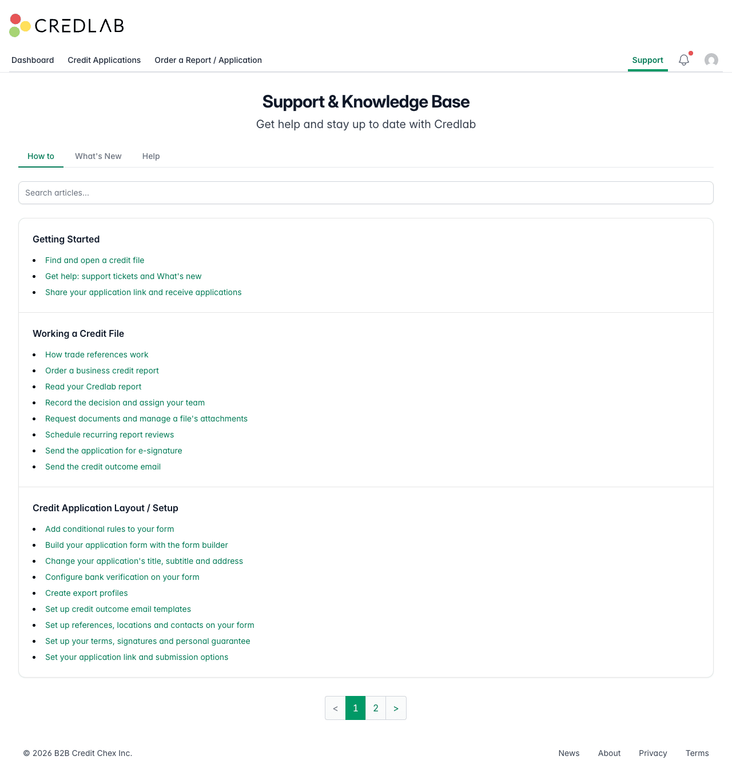
The Support and Knowledge Base page on the How to tab, with a Search articles box above a card listing articles grouped under topic headings. - Type a word into Search articles and press Enter. The list is replaced by the articles that match, each with the heading it belongs to shown beside its title.
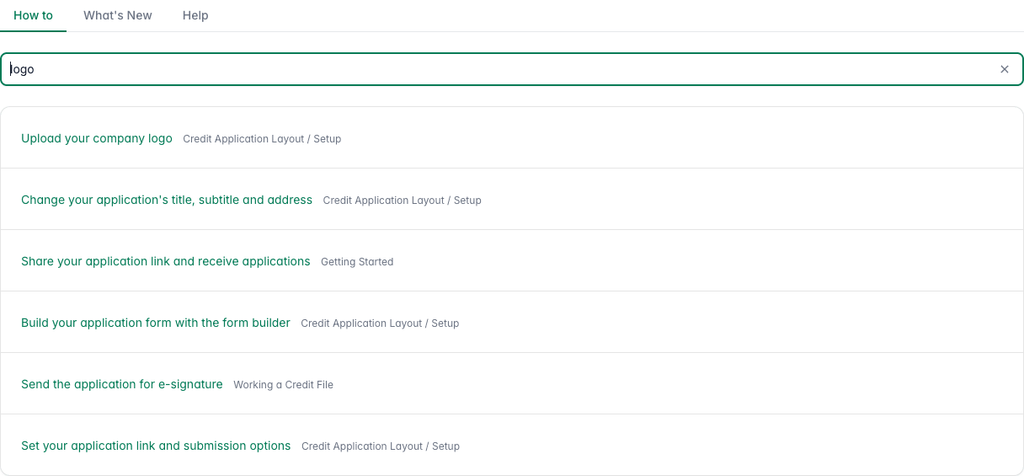
The How to tab with the word logo typed into the search box and the matching articles listed, Upload your company logo first, each labelled with its topic.
Search looks at the title or the text of each article. Click the small cross at the right of the box to empty it and get the full list back.
Click any article title to read it. The Back link at the top left of an article returns you to the tab the article belongs to (How to or What's New). A search you had typed is not kept.
See what is new in Credlab
- Click the What's New tab. Product updates are listed newest first, each with its date, a coloured label, the part of Credlab it affects, and the whole update ready to read without clicking anything.
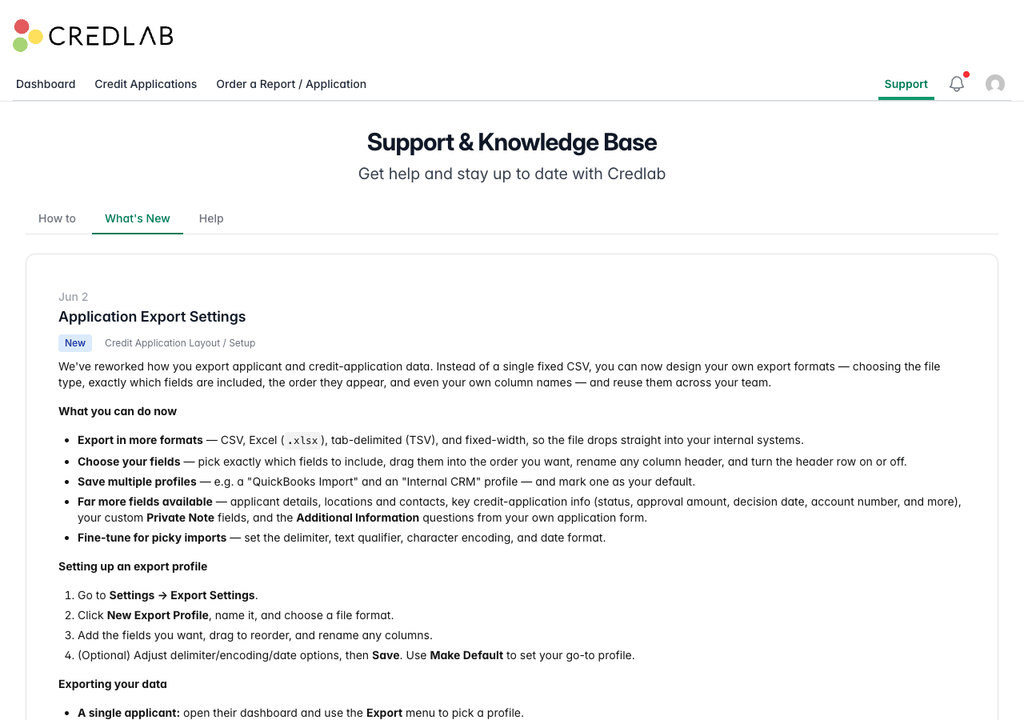
The What's New tab showing the June 2 update titled Application Export Settings, labelled New and Credit Application Layout slash Setup, with its text explaining the new export formats, fields, and profiles.
The coloured label tells you what kind of change it is:
- New is something you could not do before.
- Improvement is an existing feature that now does more or works better.
- Fix is a problem that has been put right.
Open a support ticket
Use a ticket for anything that is not about one particular applicant: a question about how something works, a screen that is not behaving, a change you want made to your account.
- Click the Help tab. Your own tickets are listed there, most recently updated first, each showing its subject, when it last changed, and a status of Open, Pending, Resolved or Closed.

The Help tab with a New Ticket button above a card reading You have no support tickets. - Click New Ticket, then write a short Subject and describe the question in Message. If it concerns a particular applicant, put their name and the file ID in the message so nobody has to ask you for it.
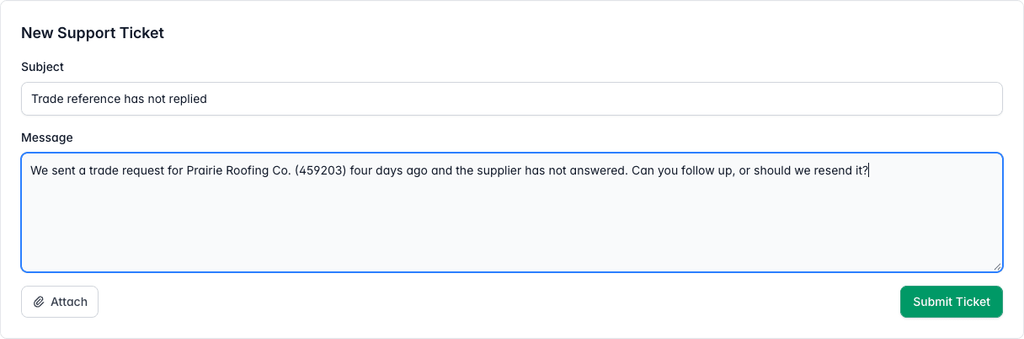
The New Support Ticket form with the subject Trade reference has not replied and a message asking about a trade request sent for Prairie Roofing Co. four days ago, above an Attach button and a Submit Ticket button. - Click Attach to add a screenshot or a document. You can pick more than one file, and a screenshot of what you are looking at usually saves a round of questions.
- Click Submit Ticket. The ticket opens with your message in it and a note confirming that somebody will get back to you.
Your ticket stays listed on the Help tab, including after it is closed. Click it to read the conversation so far. Replying to a closed ticket opens it again.
Ask about one credit file
Every credit file has its own way to reach support, and it is the better choice whenever your question is about that applicant, because Credlab can see the file straight away.
- Open the credit file you have a question about and click Questions? in the band at the top of the Applicant Summary card. A panel slides in from the right, already headed with the applicant's name and the file's ID. Type your question into Your question.
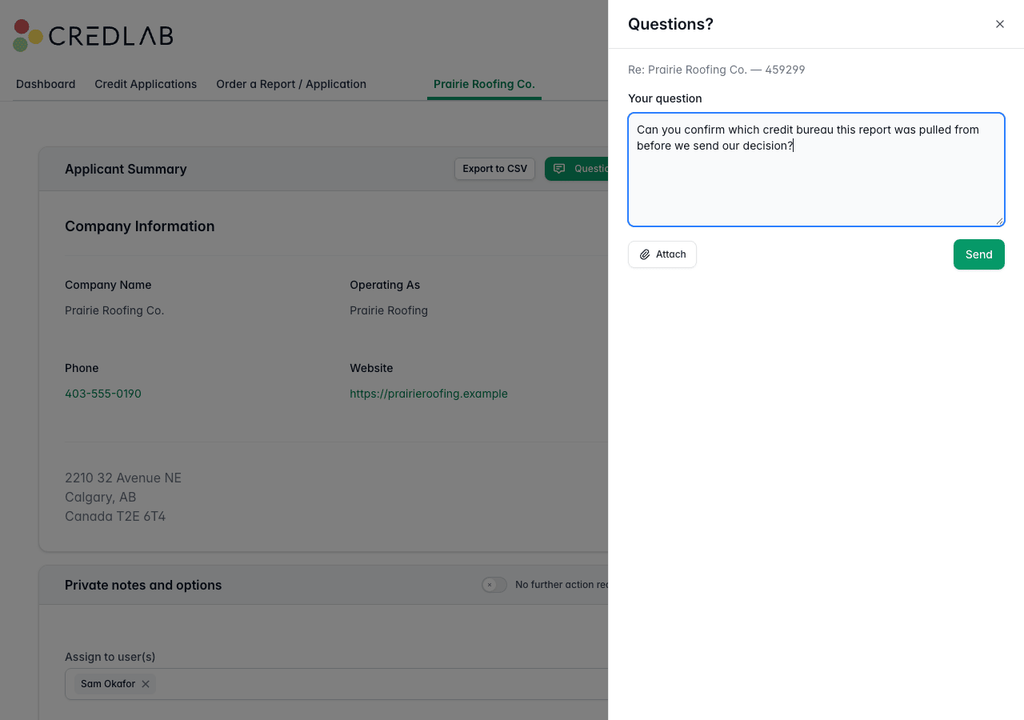
The credit file for Prairie Roofing Co. with a Questions panel open on the right, headed Re Prairie Roofing Co. 459203, a typed question about which credit bureau the report came from, and Attach and Send buttons. - Click Attach if you want to send a file along with the question.
- Click Send. Your question goes to Credlab with a link to this file attached to it, so there is nothing to copy and paste.
Each file keeps one conversation. Open Questions? on the same file later and you get the whole thread back, with a box at the bottom for your next message. Anyone else on your account who opens that file sees the same thread, so a colleague can pick the question up while you are away. Only the person who asked gets the red count and the bell when support replies, so ask your colleague to check the file directly.
When support replies
- Credlab replies by email to the address you sign in with, so you do not have to sit watching the app.
- The reply also lands in the conversation itself. Your own messages sit on the right, Credlab's sit on the left under the heading Support, and anything either of you attached is listed inside the message.
- When a reply arrives on a question you asked from inside a credit file, the bell in the top menu tells you that support has replied, and the Questions? button on that file carries a red count of the replies you have not read yet. Opening the panel clears the count.
- To carry on, type into the reply box at the bottom of the conversation and click Send Reply, whether you are on a Help tab ticket or in a file's panel. Replying to a ticket that is marked Resolved or Closed opens it again.
Tips & notes
- The more of the story you put in the first message, the fewer messages it takes. What you expected, what happened instead, and the applicant's name and file ID if there is one.
- The file ID is on the Status & Orders card of a credit file and on every row of the applications list. It is the fastest way to point Credlab at the right file.
- A question asked from inside a credit file already carries a link to that file, so you never need to attach the ID by hand there.
- Attach screenshots freely. A picture of the screen you are stuck on is worth several messages.
- The What's New tab is where changes to Credlab are announced inside the app, so it is worth a look now and then even when nothing is wrong.
- If an article nearly answers your question but not quite, open a ticket and say which article you were reading. That tells Credlab what to make clearer.
Related articles
- Find and open a credit file
- Share your application link and receive applications