Your application link is the web address of your online credit application. You send it to a customer, they fill the form in and sign it themselves, and the moment they submit it a new credit file appears in your applications list. This article shows you where to find the link, how to share it, what your customer sees, and what lands on your side afterwards.
Before you start
- Your form is ready to use as soon as your account is set up. If you want to change the fields, the wording, or your logo first, see "Build your application form with the form builder".
- Anyone on your account can see the link and share it.
- Only account admins can change the address of the link or the form behind it.
Find your application link
- Open your dashboard. It is the first tab in the top menu.
- Look at the card called "Get your online application in front of customers". Step 1 of that card, "Share your link", shows your link.
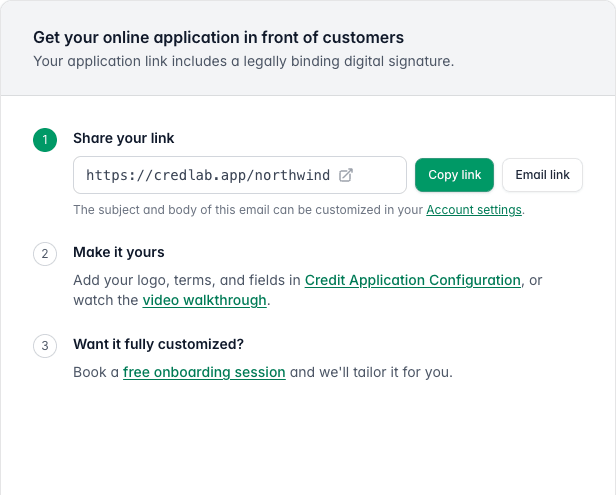
The dashboard card titled Get your online application in front of customers, with the application link https://credlab.app/northwind shown next to a Copy link button and an Email link button. - Click Copy link to put the address on your clipboard. The button confirms with "Copied!" and you can paste the link into an email, a web page, or a chat message.
- Or click Email link to start a new message in your own email program with your link already in the body. The subject and the wording of that message come from your account settings, so you can set them once and reuse them.
- If you are an account admin, you can also find the link under Credit Application Configuration: click the section called "Application & submission options". Your link is the first field, made up of the fixed part,
https://credlab.app/, and the short name your account uses. This page is only visible to account admins.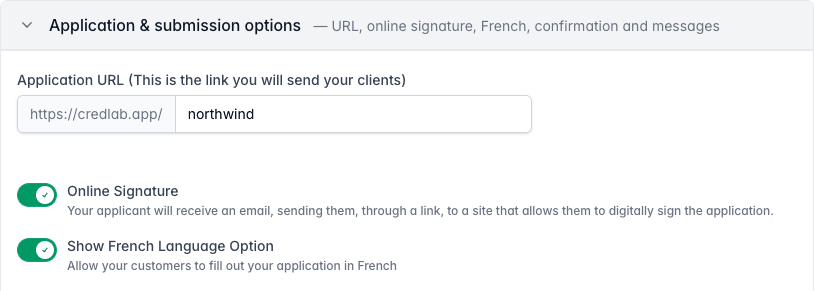
The Application and submission options section of Credit Application Configuration, showing the Application URL field with https://credlab.app/ in front of the account name northwind, above the Online Signature and Show French Language Option switches.
Share it with customers
Your link is a normal web address, so anywhere you can put a link, you can put this one:
- Paste it into an email or a quote you are already sending.
- Put it behind an "Apply for credit" button on your website.
- Add it to your email signature, an invoice, or a printed order form.
- Send it in a text message or a chat.
The link does not expire and it stays the same until an admin changes it, so you can print it and reuse it for as long as you like. The same link works for every customer: each person who opens it gets their own private application.
What your customer sees
- When someone opens your link, they land on the first step of your form, with your logo, your company name and address, and the list of steps down the left.
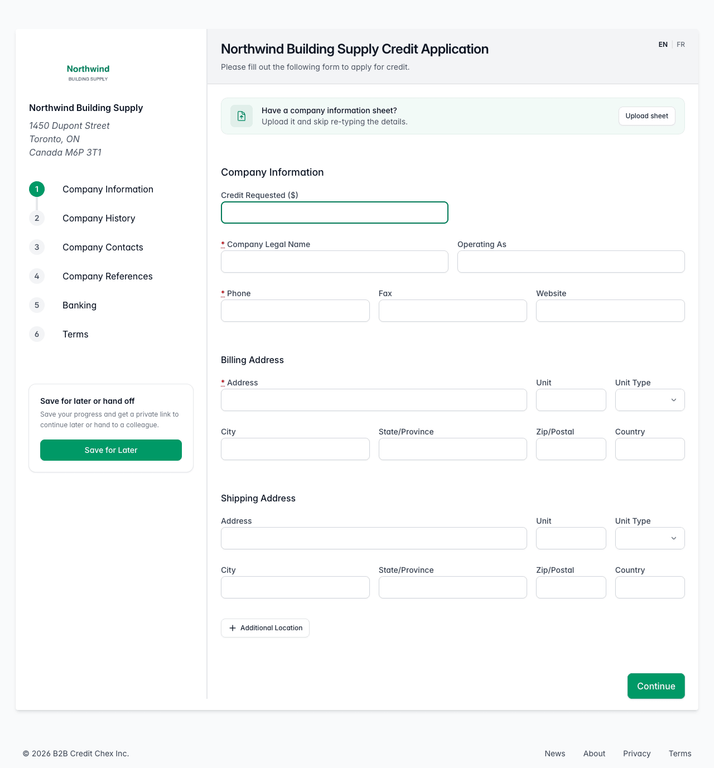
The first step of the Northwind Building Supply credit application, with the Northwind logo and address on the left, the six numbered steps, and the Company Information fields for credit requested, company legal name, phone, and billing and shipping addresses. - If your form offers French, the applicant clicks FR in the top right corner and nearly all labels on the form change language. Clicking EN brings English back. Switching reloads the form, so it is best done on the first screen: anything typed on the current step and not yet saved is cleared, while completed steps and saved work are kept.
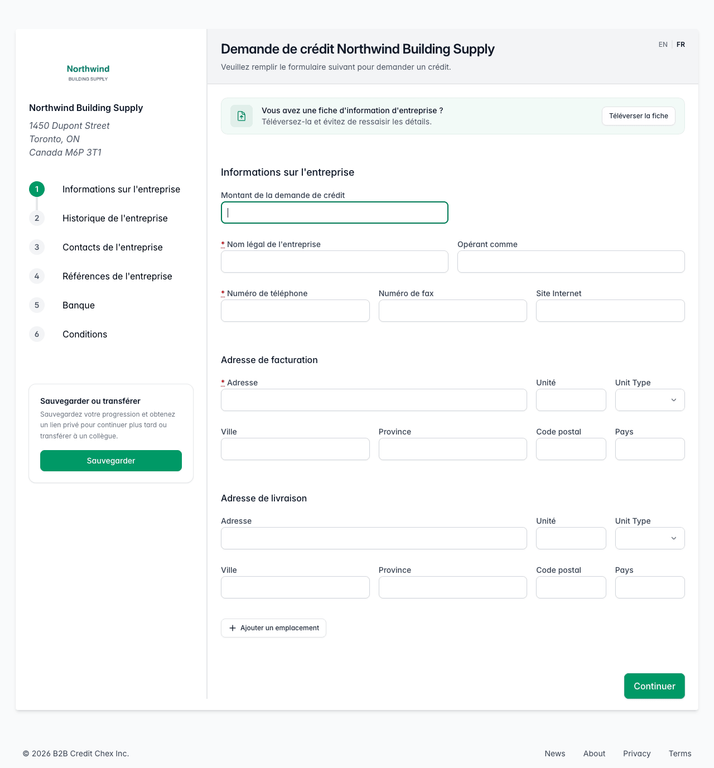
The same first step of the application shown in French, with the FR option selected and most step names, field labels, and buttons in French. A few labels, such as Unit Type, are still shown in English. - If the applicant cannot finish in one sitting, they click Save for Later in the "Save for later or hand off" card. Credlab saves the form and shows them a private link to the exact application they started, with a Copy button next to it.
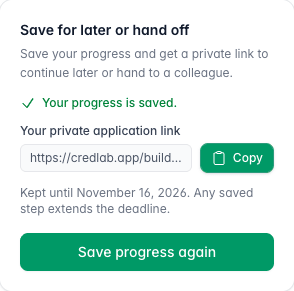
The Save for later or hand off card showing a green Your progress is saved message, a private application link with a Copy button, a note that the link is kept until November 16 2026, and a Save progress again button. - The applicant keeps that private link, or passes it to a colleague who has the missing information. Whoever opens it picks up on the step where the form was left. On a phone the save card sits as a bar along the bottom of the screen instead of beside the form.
A saved application is kept for 60 days after the last save, and every further save pushes that date out again. Nothing appears in your applications list while an application is only saved. You see it once the applicant submits.
Let customers send a company information sheet instead
Many companies already keep a one page credit sheet with all their details on it. If your form allows it, an applicant can send that sheet rather than retyping everything.
- The applicant clicks Upload sheet in the green banner at the top of your form, or goes straight to your link with
/company_information_sheeton the end. - They fill in a short set of details, attach their sheet as an image, a PDF, or a Word file, accept your terms, and click Submit Your Information Sheet.
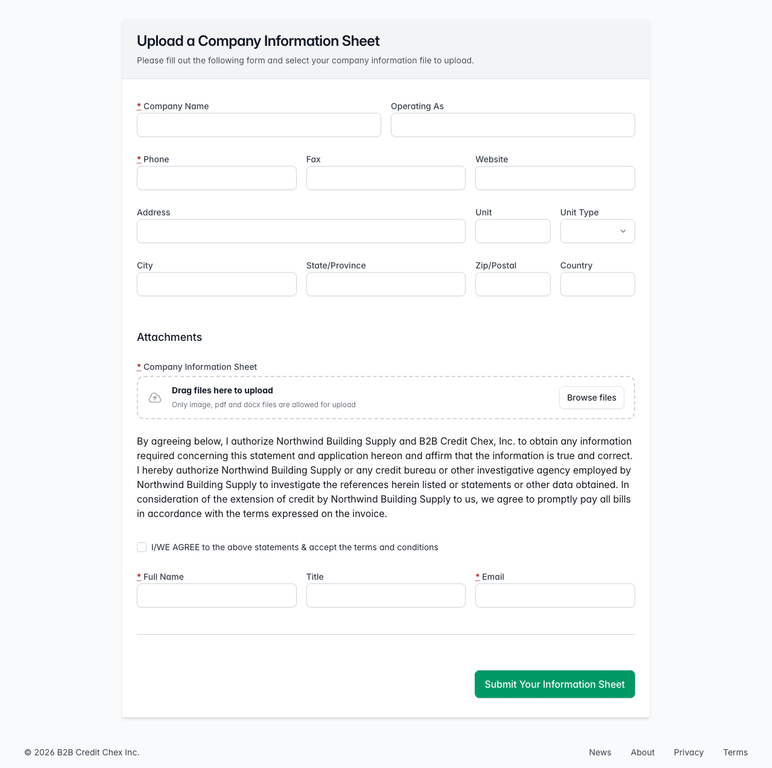
The Upload a Company Information Sheet page with fields for company name, phone and address, a drag and drop area for the sheet, the terms paragraph with an agreement checkbox, and a Submit Your Information Sheet button.
The sheet arrives in Credlab as a new file with the document attached, so you can work it like any other application.
What happens when an application is submitted
- The applicant sees a confirmation page. If your form asks for an online signature, that page tells them the application is not finished until they sign, and Credlab emails a signing link to the signer they named. The email comes from Credlab Signature Request, at signature@credlab.com.
- Credlab emails everyone on your account who has new application emails turned on, and adds a notification to the bell in the top right of your screen.
- Open the Credit Applications tab. The new file is at the top of the list with the status New, its reference number, and the applicant's address.
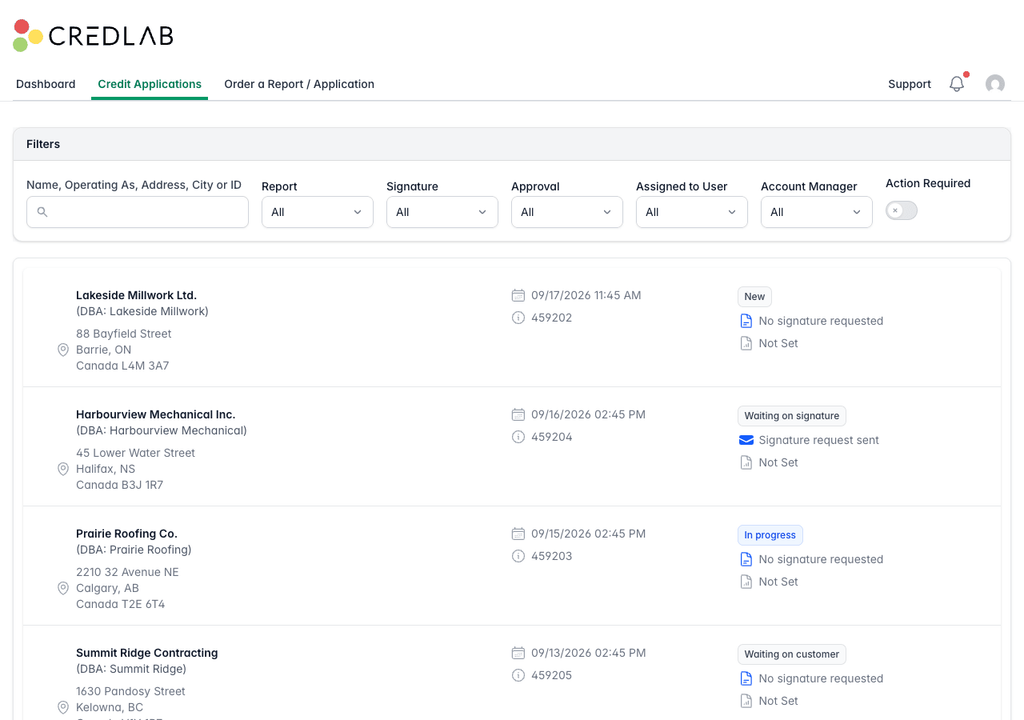
The Credit Applications list with Lakeside Millwork Ltd. at the top, marked New, above Harbourview Mechanical, Prairie Roofing and Summit Ridge Contracting. - Click the applicant's name to open the file and start working it.
Tips & notes
- Everyone on your account sees the same link on their dashboard, so any of your team can send it out.
- Changing the short name at the end of the link breaks every copy of the old link you have already sent, including printed ones. Change it only when you mean to.
- If you do not want the French option, an admin can turn off "Show French Language Option" in the same settings section and the EN and FR choice disappears.
- French speaking customers can be sent the same link. They switch to French themselves on the first screen.
- Saved but unsubmitted applications expire 60 days after the last save. If a customer tells you their link no longer works, send them your application link again and they start fresh.
- Each person decides whether they want the new application emails. Open your profile and use the "Receive new application emails" setting. Turning it off does not affect anyone else, and the notification bell still shows the application.
- There is no switch on your side to take the form offline. If you need it closed for a while, email service@credlab.com and visitors will see a short page saying the application is unavailable.
Related articles
- Find and open a credit file
- Build your application form with the form builder
- Record the decision and assign your team